> ## Documentation Index
> Fetch the complete documentation index at: https://docs.revyl.com/llms.txt
> Use this file to discover all available pages before exploring further.
# Partners
> Put live Revyl sessions inside your product, and give your users the reports those sessions produce and their workspace's Atlas.
A partner integration lets your platform give each of your customers a Revyl workspace and run
Revyl for them. Your product starts live sessions in that workspace and can embed a live device in
your own UI. Your users then open what those sessions recorded, such as reports and test results, in
their own Revyl workspace, along with its Atlas.
To become a partner, email [support@revyl.ai](mailto:support@revyl.ai). Revyl issues your partner
API key and turns your integration on.
The partner API is available to approved partners. Revyl turns it on for your platform in each
environment and may turn on your customer accounts one at a time. Connecting an account that
isn't turned on answers `403 partner_not_allowed`.
## What it looks like
```mermaid
flowchart TD
P["Your product"] -->|"Connect an account"| R["Revyl creates or links a workspace"]
A["Customer Owner or Admin"] -->|"Approves in Revyl"| R
R -->|"Connection credential"| B["Your backend starts sessions"]
R --> E["App embed in your product"]
B --> W["Reports and test results in the user's Revyl workspace"]
P -->|"Dashboard link"| W
```

Illustration only: your agent's own session runs through the CLI; an app embed streams a separate session the visitor starts.
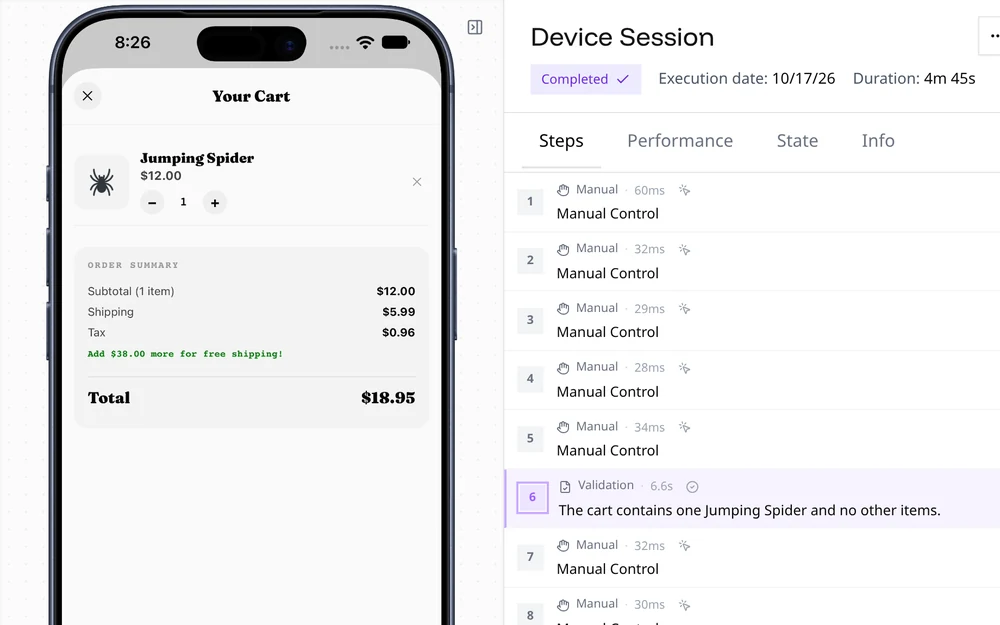
What the session leaves in your user's workspace: the recording beside each step.
## What you can build
- **Run Revyl for each customer.** Connect a customer account, and Revyl creates a workspace for
it or links one the customer already has, after an Owner or Admin approves. See
[Connect accounts](/partners/connect).
- **Start sessions and tests.** The connection credential works like a Revyl API key for that one
workspace, so your backend can create apps, upload builds, start cloud devices, and run tests
with the [CLI](/install) or the API.
- **Show a live device in your product.** Create an [app embed](/devices/embed) in the
workspace and mint a one-time embed URL for each user. An embed starts its own session when the
visitor clicks start; it can't show a session your backend started. Embed sessions are billed to
the customer's organization, not to your platform, and an embed keeps working after a disconnect
until you revoke it. Revoke your embeds with `DELETE /api/v1/embeds/{embed_id}` before you disconnect.
- **Give users their data.** A [dashboard link](/integrations/partner-dashboard) sends a person to
the workspace in Revyl, where they sign in and see its sessions, reports, test results, and
Atlas.
## What a connection can do
A connection credential has a Member's access to the one organization it's connected to. When a
customer approves a connection, Revyl shows them this list, word for word. A workspace Revyl
creates for the account gets the same access without an approval step:
**It can:**
- Use this organization with a Member's access, except as listed below
- Create apps, upload builds, and run cloud builds
- Start iOS and Android cloud devices and run tests
- See sessions, reports, and test results
- Read your variables, including secret values
**It can't:**
- Change your plan, payment details, or overage settings
- Invite or remove members
A few surfaces that need a signed-in person also refuse connection credentials, including Web
sessions.
[Approve a partner connection](/partners/customers) shows the same request from the customer's
side.
## How it works
Email [support@revyl.ai](mailto:support@revyl.ai). Your partner key identifies your platform
to the [partner API](/partners/api). Keep it on your servers.
Call `POST /api/v1/partner/connections` with your ID for the account and the email of the
person enabling it. Revyl either creates a workspace and returns a credential, or asks an
Owner or Admin to approve.
After approval, poll for the connection credential. It expires on its own, and you can rotate
it at any time.
Use the credential with the CLI or API. For a short-lived runtime, such as a VM, mint a session
credential that expires within four hours instead.
Request a dashboard link when someone wants to open the workspace in Revyl.
When the customer leaves, disconnect the account. Its credentials stop working, and the
sessions started with them stop. App embeds keep working until you revoke them. The workspace
and its data stay with the customer.