

- explore your app directly on a real device without installing anything locally
- let agents validate live changes on device
- power the dev loop to validate local changes on a cloud device
- provide reviewers with live access to a specific build
- enable designers to confirm the implemented experience against the intended design
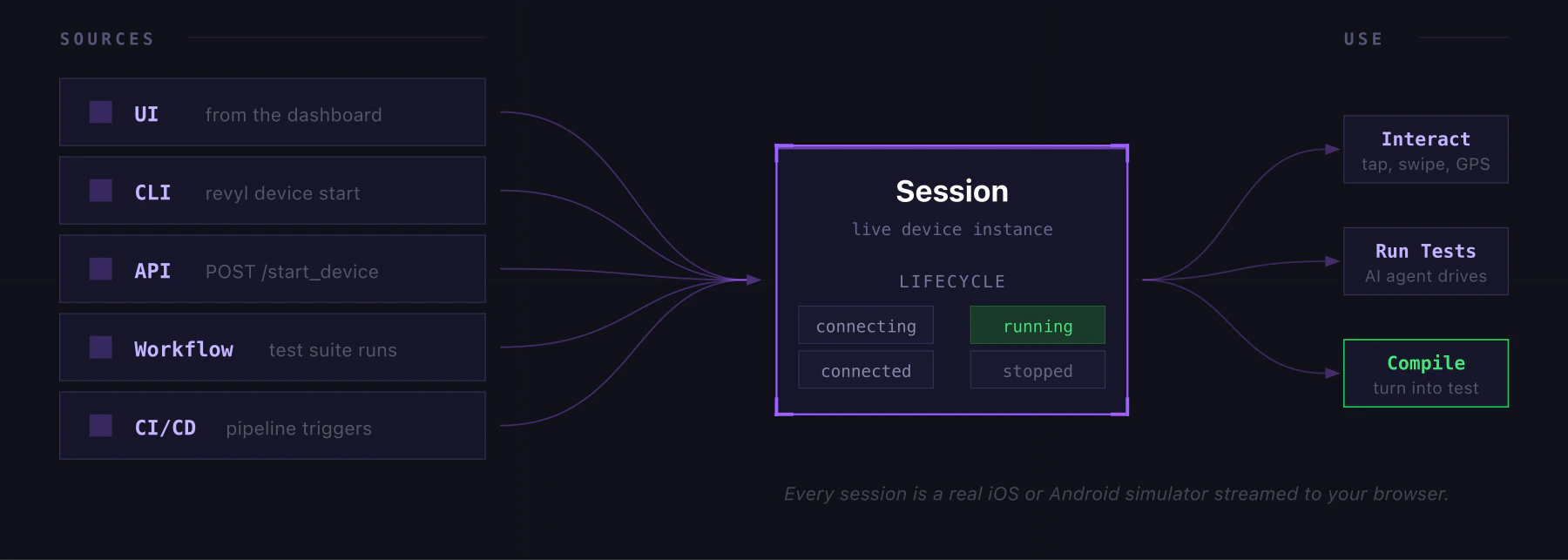
Starting a Session
Sessions can come from anywhere:From the Dashboard
- Go to Sessions and click Start session
- Pick a platform (iOS or Android), device model, and OS version
- Optionally pick an App and its Build to pre-install. It starts from the page you came from, else the app’s default branch on Automatic.
- Set an idle timeout (5m, 15m, 30m, or 1h)
- Click Start session
From an Agent via the CLI
Install the Agent Skill and ask your agent toStart a new session of your app using Revyl
Active Sessions
The sessions page shows all live sessions with real-time status, elapsed time, and an idle indicator. Sessions that sit idle for more than 2 minutes get flagged. You can stop any session from the list. Web sessions show Web · Chrome with a browser icon and the app name when available. The platform filter and the Overview device-time breakdown include Web; unrecognized platforms are never labeled Android.Session History
Past sessions show device info, duration, source, user, and the branch/build selected when they started. Filter by app and branch; installing another artifact later does not rewrite the initial build. From here you can:- View the session recording and device logs
- Compile the session into a test (if it has recorded actions)
- Copy the session ID for API/CLI use