

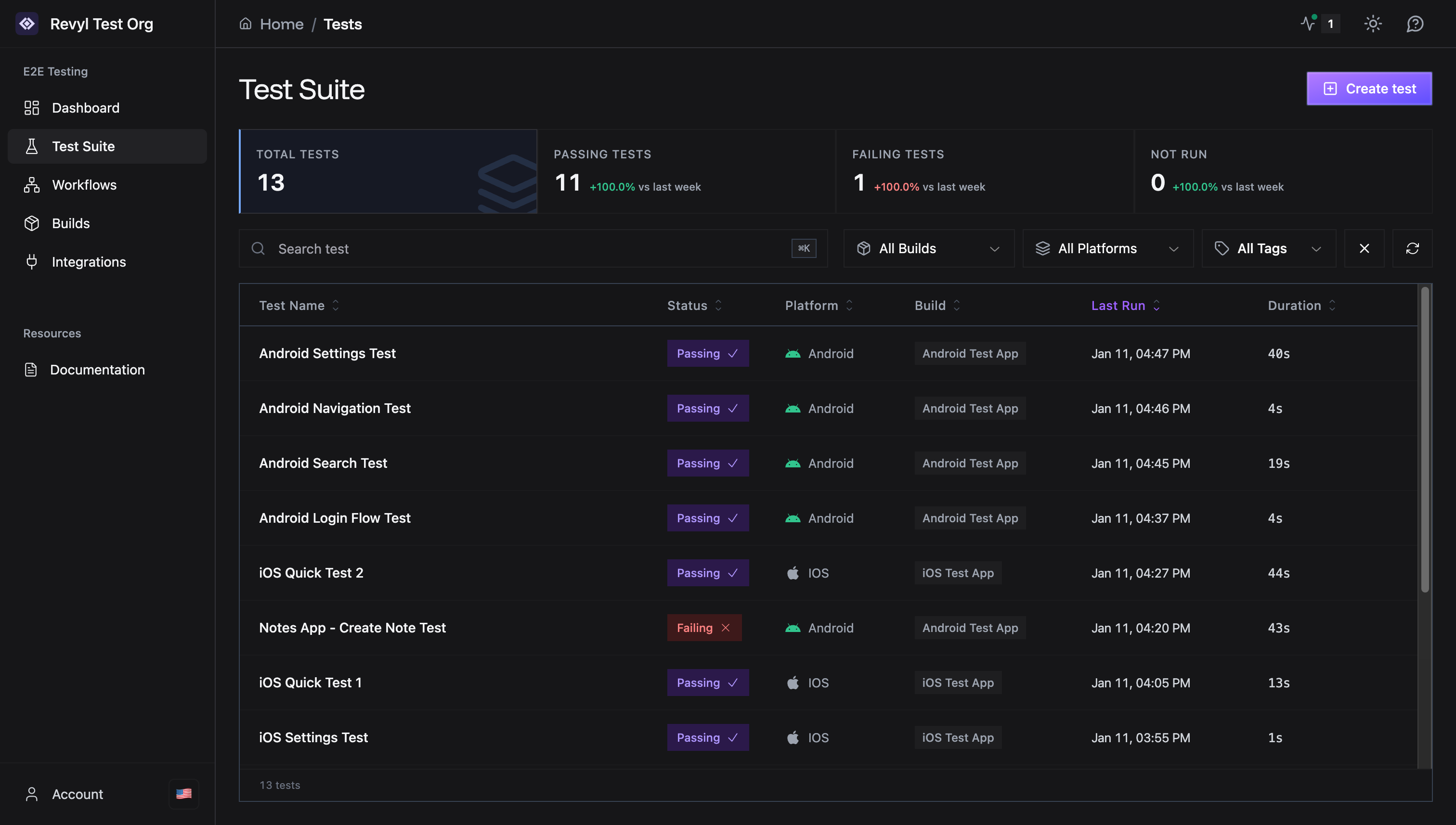
Overview Metrics
Quick snapshot of your test health.- Total Tests: All tests in your organization
- Passing Tests: Currently passing with percentage change
- Failing Tests: Tests needing attention
- Not Run: Tests never executed
Search & Filters
Find tests quickly with powerful filtering.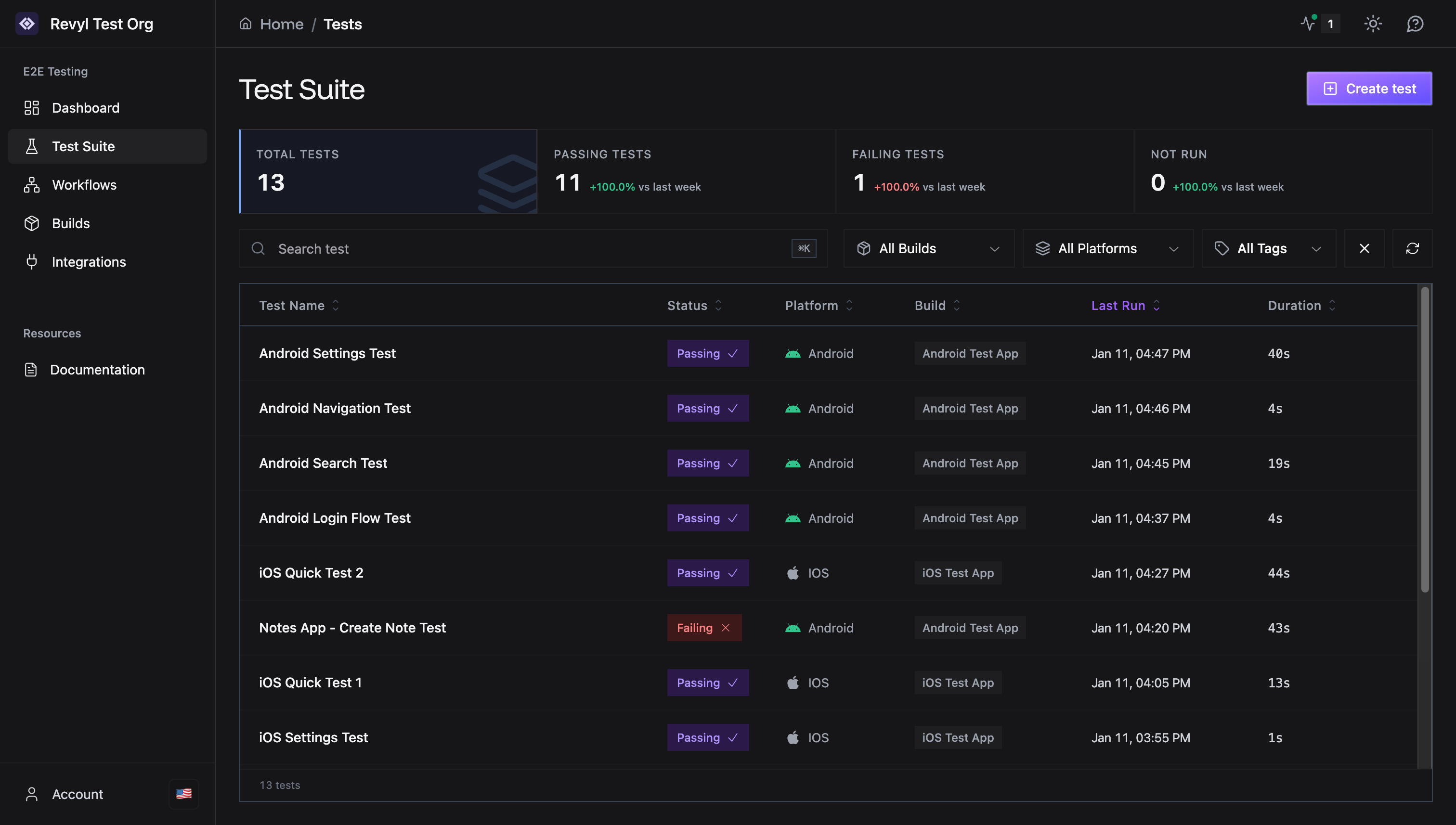
- Search: Type test names (keyboard: ⌘K)
- All Builds: Filter by specific build
- All Platforms: Android or iOS
- All Tags: Filter by custom tags
- Refresh: Update test statuses
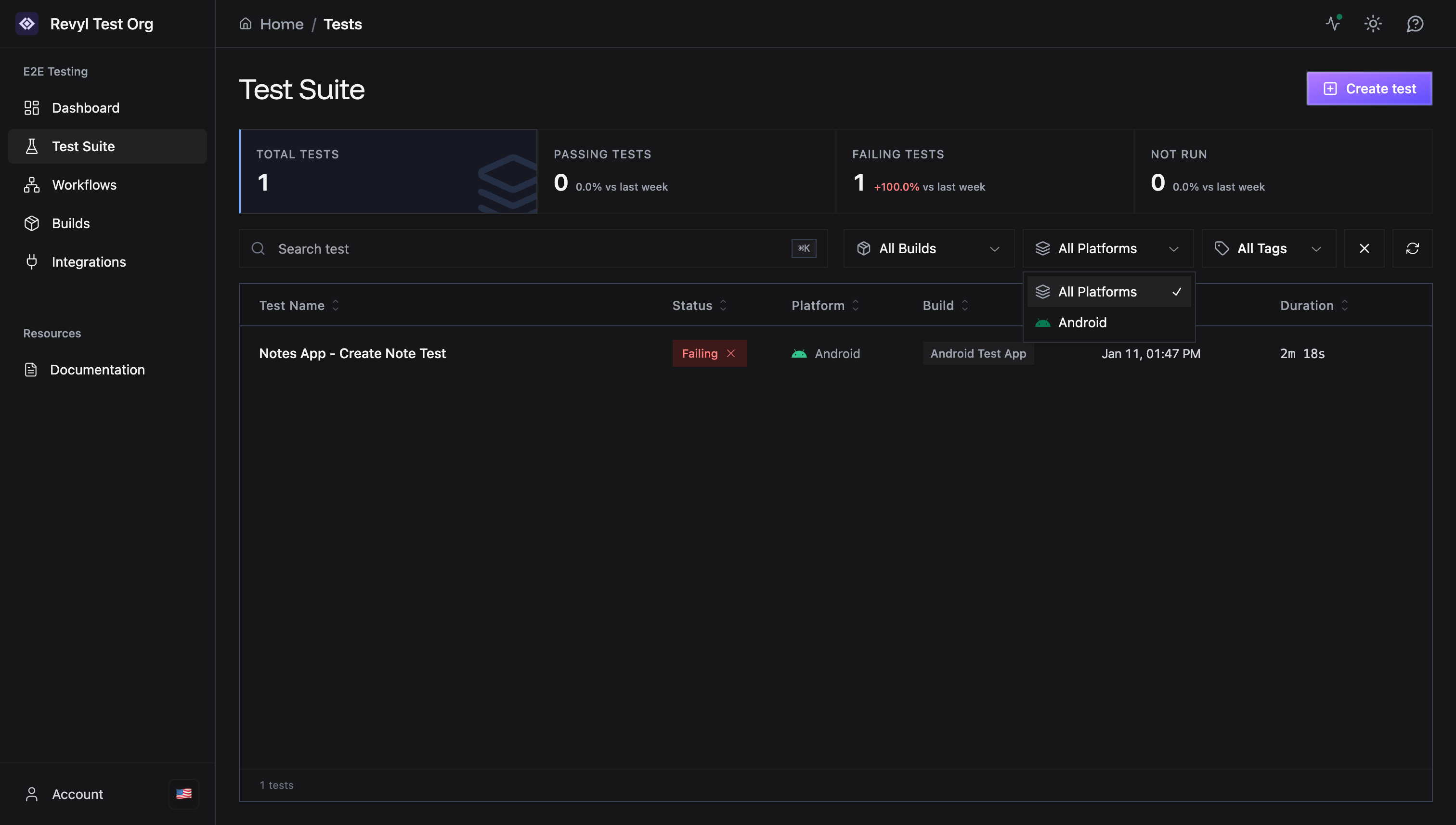
Test Table
View and manage all tests.Columns
- Test Name: Click to view test details
- Status: Pass, Fail, or Not Run badge
- Platform: Android or iOS icon
- Build: Associated app build
- Last Run: Most recent execution timestamp
- Duration: How long the test took
Row Actions
Hover over any test row to reveal action buttons.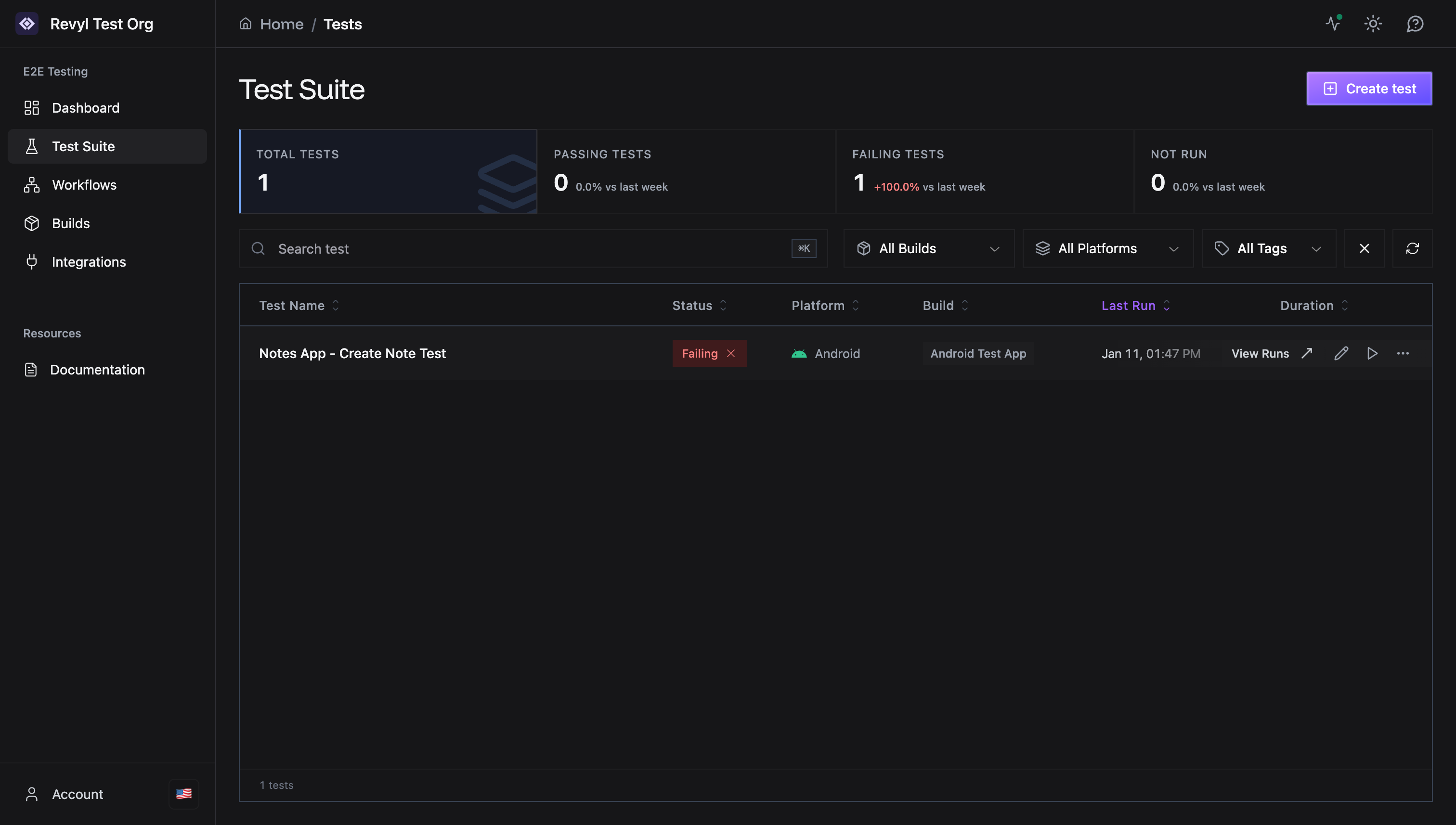
- View Runs: See execution history
- Edit (pencil icon): Open test editor
- Run (play icon): Start test immediately
- More (three dots): Additional options
More Actions Menu
Click the three dots for advanced options.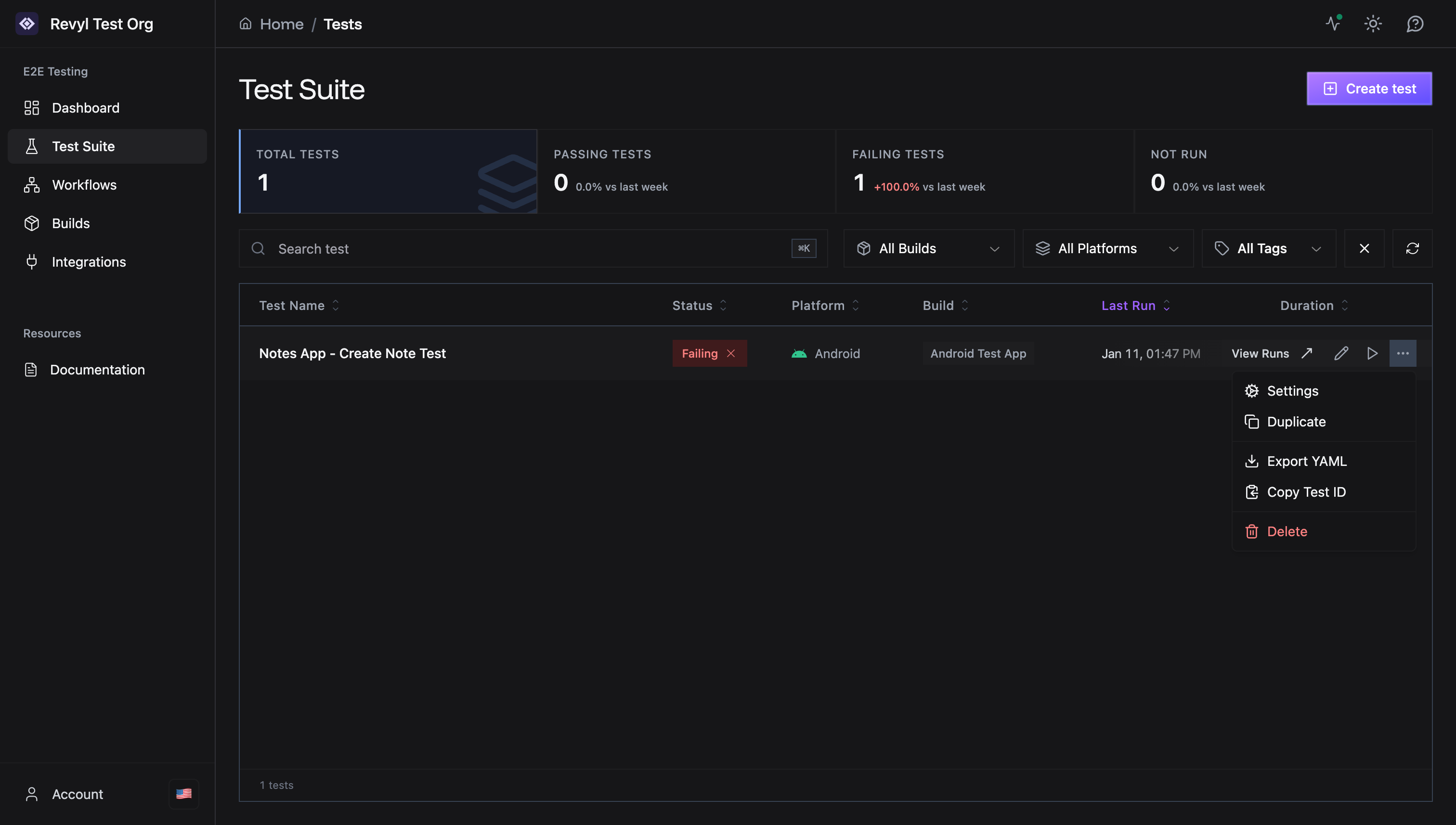
- Settings: Configure test properties
- Duplicate: Create a copy of this test
- Export YAML: Download test as YAML file
- Copy Test ID: Copy unique identifier
- Delete: Remove test (red, destructive)
Creating Tests
Click “Create test” button (top right) to start. See Test Creation for detailed guide.Quick Tips
- Click a test row to open its history
- Click status badge to see latest report
- Use search (⌘K) for fast navigation
- Sort by “Last Run” to find stale tests
- Filter failing tests to prioritize fixes