

Accessing Workflow Configuration
- Go to Workflows in the sidebar
- Click on a workflow card to open its details page
- Click the Configuration tab
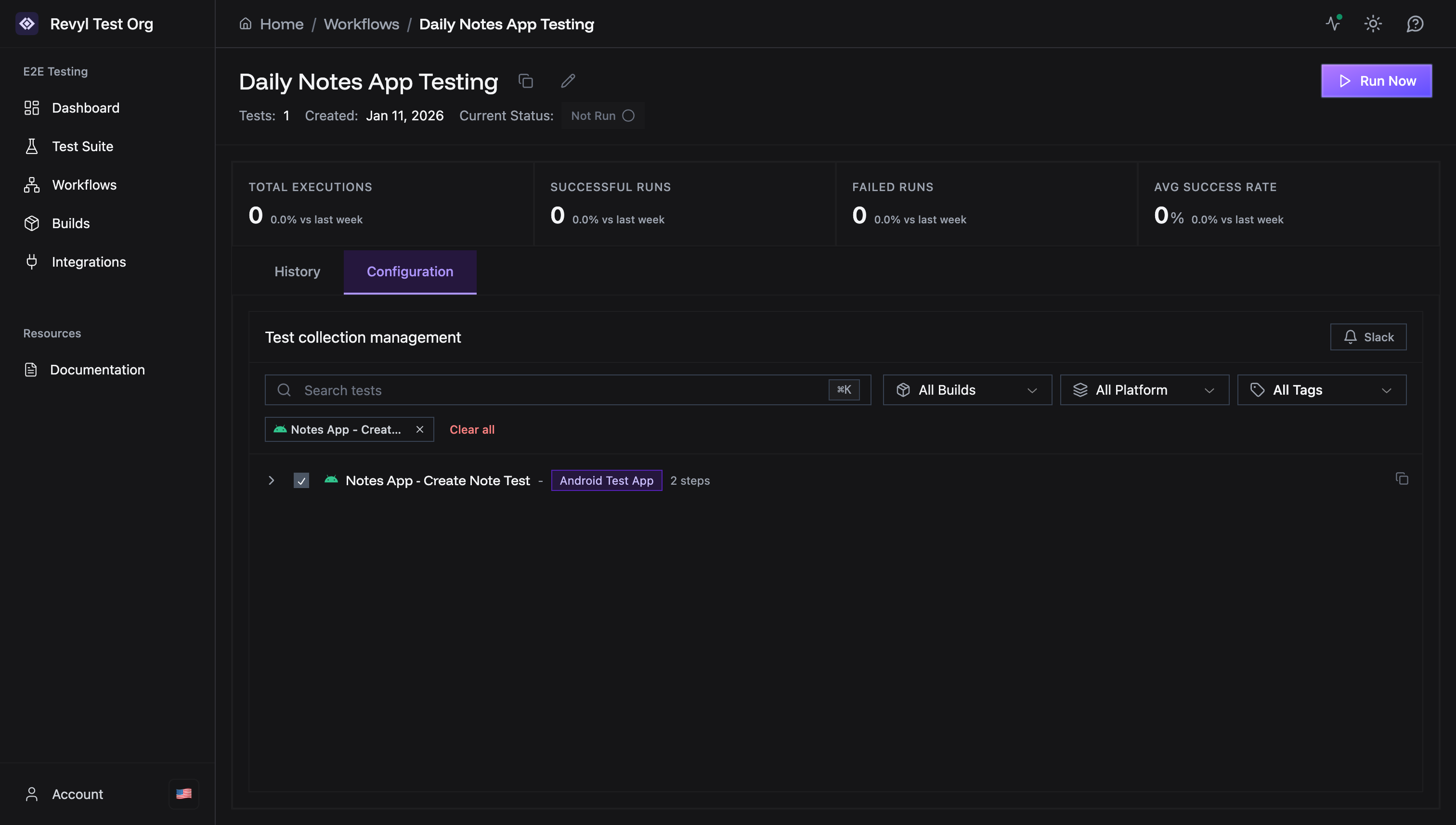
Workflow Details Page
The workflow details page shows: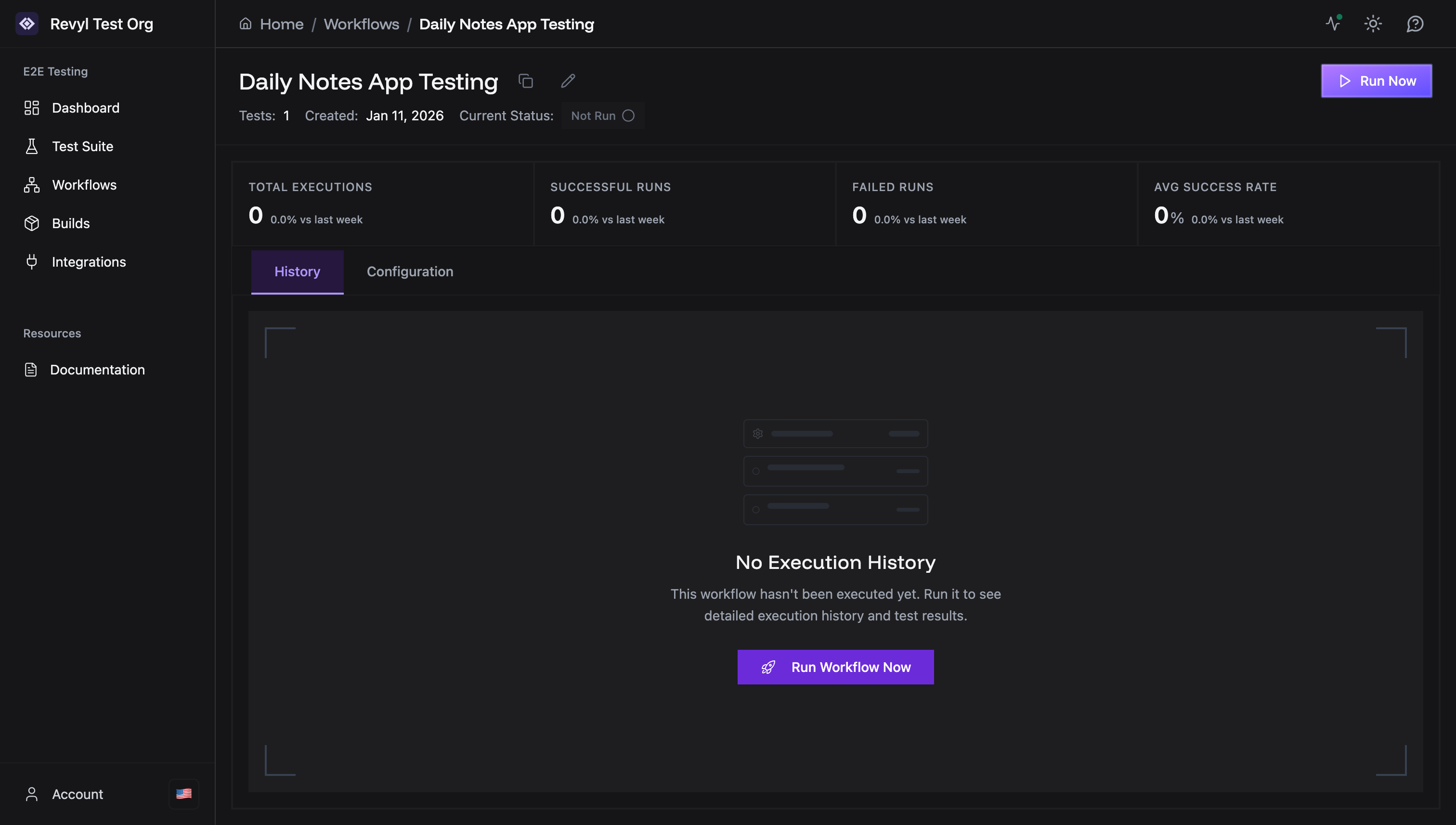
Header Information
- Workflow Name - with options to:
- 📋 Copy workflow ID
- ✏️ Rename workflow
- Run Now button - Execute the workflow immediately
- Metadata: Tests count, Created date, Current Status
Summary Statistics
Four cards showing:- Total Executions - Number of times the workflow has run
- Successful Runs - Count of successful executions
- Failed Runs - Count of failed executions
- Avg Success Rate - Percentage of successful runs
Tabs
- History - View past workflow executions and results
- Configuration - Manage tests and settings (covered in this guide)
Managing Tests in a Workflow
The Configuration tab provides Test collection management tools.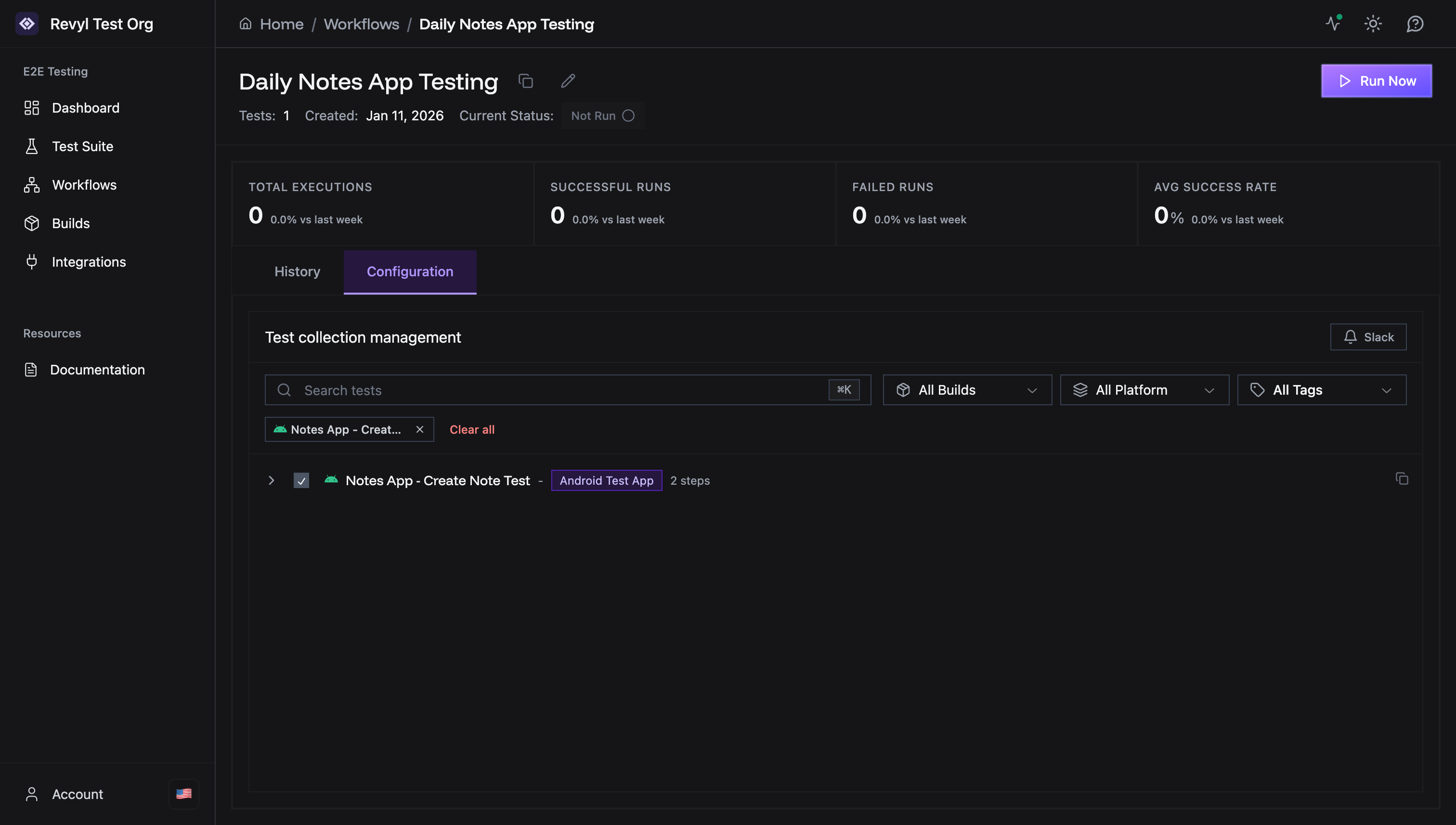
Adding Tests
To add more tests to your workflow:- Use the Search box to find tests by name
- Apply filters:
- All Builds - Filter by specific build
- All Platform - Filter by Android or iOS
- All Tags - Filter by test tags
- Check the checkbox next to tests you want to add
- Tests are automatically added to the workflow
Removing Tests
To remove a test from the workflow:- Find the test in the selected tests list
- Uncheck the checkbox next to the test name
- The test is immediately removed from the workflow
Viewing Test Details
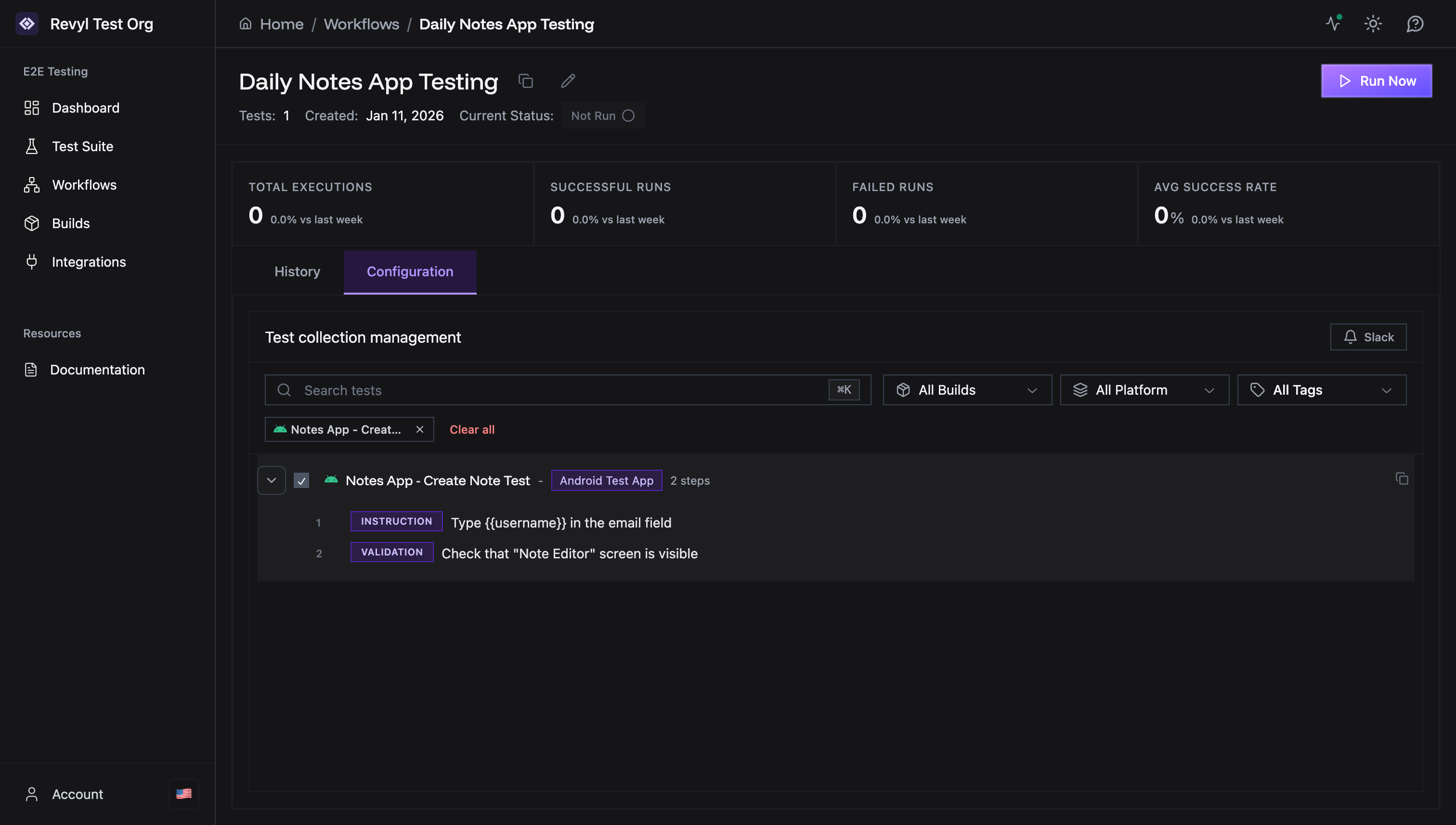
Each test in the list shows:- Test name
- Platform icon (Android/iOS)
- Build name (e.g., “Android Test App”)
- Step count (e.g., “2 steps”)
- Expand arrow (>) to view test steps
Test Filters
Use filters to quickly find tests:Workflow Settings
Renaming a Workflow
- Click the Rename button (✏️) next to the workflow name
- Enter the new name
- Save
Copying Workflow ID
The workflow ID is useful for:- API integrations
- CI/CD pipelines
- Support requests
Workflow Overrides
Workflow-level overrides allow you to configure settings that apply to all tests in the workflow, without modifying individual tests.Build Override
Override the build used for all tests in the workflow. When to use:- Run all tests against a specific build version
- Test a staging build without changing each test’s configuration
- A/B test different build versions
- Open the workflow’s Configuration tab
- Find the Build Override section
- Select a build from the dropdown
- All tests in this workflow will now use the selected build instead of their individual build settings
When a build override is set, the workflow will use that build for ALL tests,
regardless of each test’s configured build. Remove the override to return to
per-test build settings.
Location Override
Set an initial GPS location for all tests in the workflow. When to use:- Test location-based features at a specific location
- Ensure consistent location for all tests in a workflow
- Test geofencing or regional features
- Open the workflow’s Configuration tab
- Find the Initial Location section
- Enter Latitude and Longitude coordinates
- All tests will start with the device at this location
| Location | Latitude | Longitude |
|---|---|---|
| San Francisco | 37.7749 | -122.4194 |
| New York | 40.7128 | -74.0060 |
| London | 51.5074 | -0.1278 |
| Tokyo | 35.6762 | 139.6503 |
Location can be overridden at multiple levels (workflow → test → step).
Step-level
set_location takes highest priority.Integrations
Slack Integration
Click the Slack button in the Configuration tab to set up notifications:- Click Slack button
- Follow the integration flow
- Choose which Slack channel to send notifications to
- Select a notification rule:
- On Start (workflow started)
- On Success (workflow completed successfully)
- On Failure (workflow failed)
Other Integrations
Additional integrations may be available based on your plan. Contact
[email protected] for custom integration options.
Execution History
Switch to the History tab to view:- All past runs of the workflow
- Execution status (Passed, Failed, Running)
- Timestamp of when it ran
- Detailed test results for each run
Manual Execution
To run a workflow manually: Option 1: From Workflows List- Go to Workflows page
- Click the Run button (▶) on the workflow card
- Open the workflow details page
- Click Run Now button in the top-right
Execution Process
When you run a workflow:- All selected tests are queued for execution
- Tests run concurrently (subject to device availability and plan limits)
- Each test runs its steps independently
- Results are collected and aggregated
- Workflow status is updated (Passed/Failed) once all tests finish
Monitoring Execution
While a workflow is running:- Status shows as “Running” 🟡
- You can view progress in the History tab
- Individual test results appear as tests complete
Workflow Execution Behavior
Test Execution Order
Tests in a workflow run concurrently. They will be scheduled to start as soon as possible, in parallel.What Happens When a Test Fails?
When a test fails during workflow execution:- ❌ The failed test is marked as “Failed”
- ✅ The workflow continues executing remaining tests
- ⚠️ The overall workflow status becomes “Failed”
- 📊 You can view failure details in the History tab
Workflows do NOT stop on first failure - all tests will run to completion.
Best Practices
Keep Tests Up to Date
- Remove tests that are no longer relevant
- Update test names when features change
- Regularly review and clean up test selections
Organize by Purpose
Group tests logically:- “Login Flow” - All authentication tests
- “Smoke Tests” - Critical path only
- “Full Regression” - Comprehensive coverage
Monitor Workflow Health
- Check the Avg Success Rate metric
- Investigate failing tests promptly
- Review execution history regularly
- Set up Slack notifications to get alerts
Next Steps
Test History
Review workflow and test execution results
Slack Integration
Get notifications for workflow runs
CI/CD Integration
Trigger workflows from your pipeline
Unified Monitor
Monitor workflow execution in real-time
Need help? Contact [email protected]