

What It Does
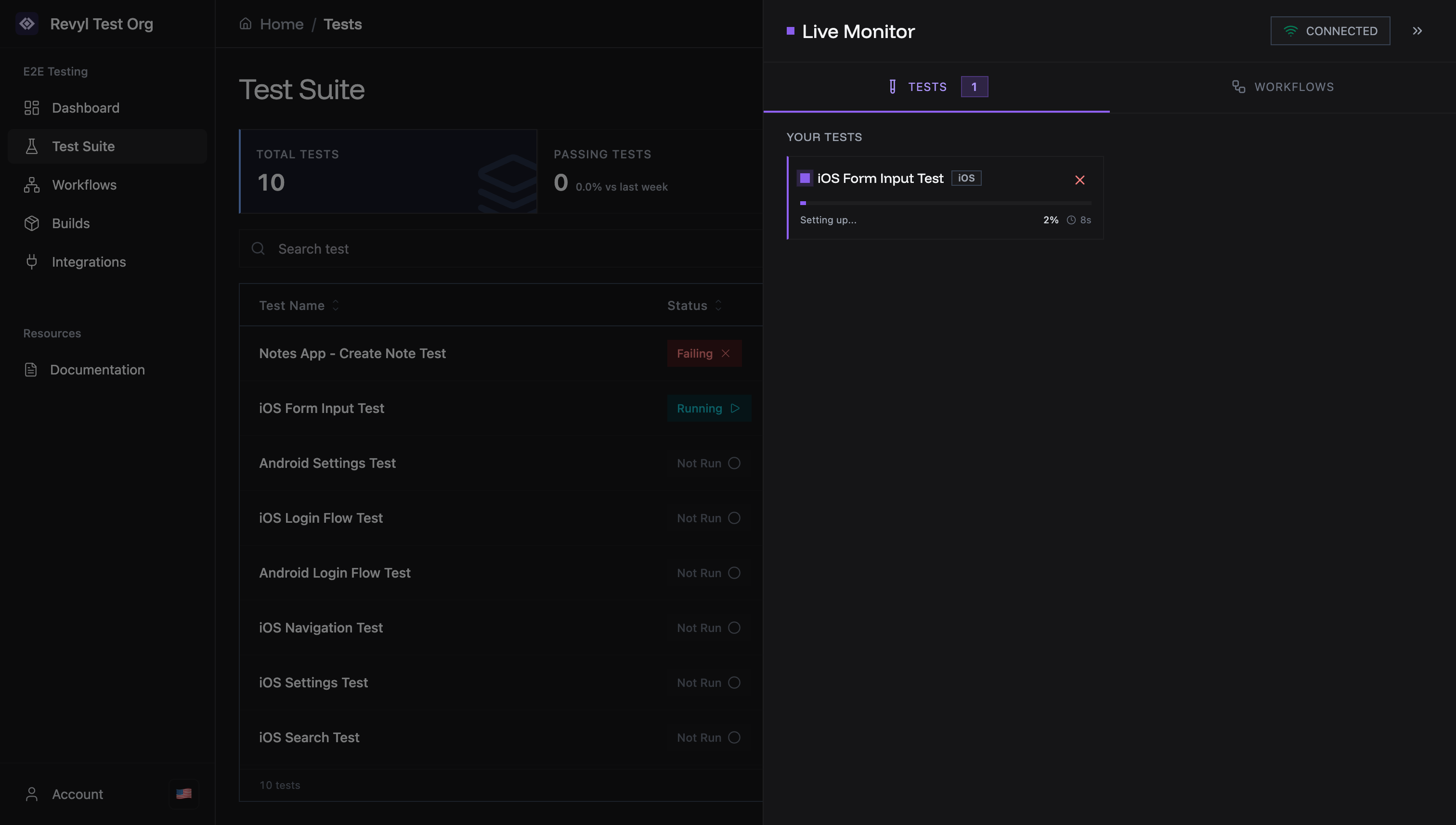
The Live Monitor shows all currently running tests and workflows in one place. Watch test progress, device status, and completed runs from a single overlay. Key Features:- Real-time updates: See tests as they execute
- Quick access: Launch from any page via top navigation
- Dual tabs: Separate views for Tests and Workflows
Opening the Monitor
Click the Live Monitor button in the top navigation bar (next to theme switcher). Opens as an overlay. You can navigate anywhere while keeping it visible.Monitor Tabs
Tests Tab
Shows individual test executions with real-time progress.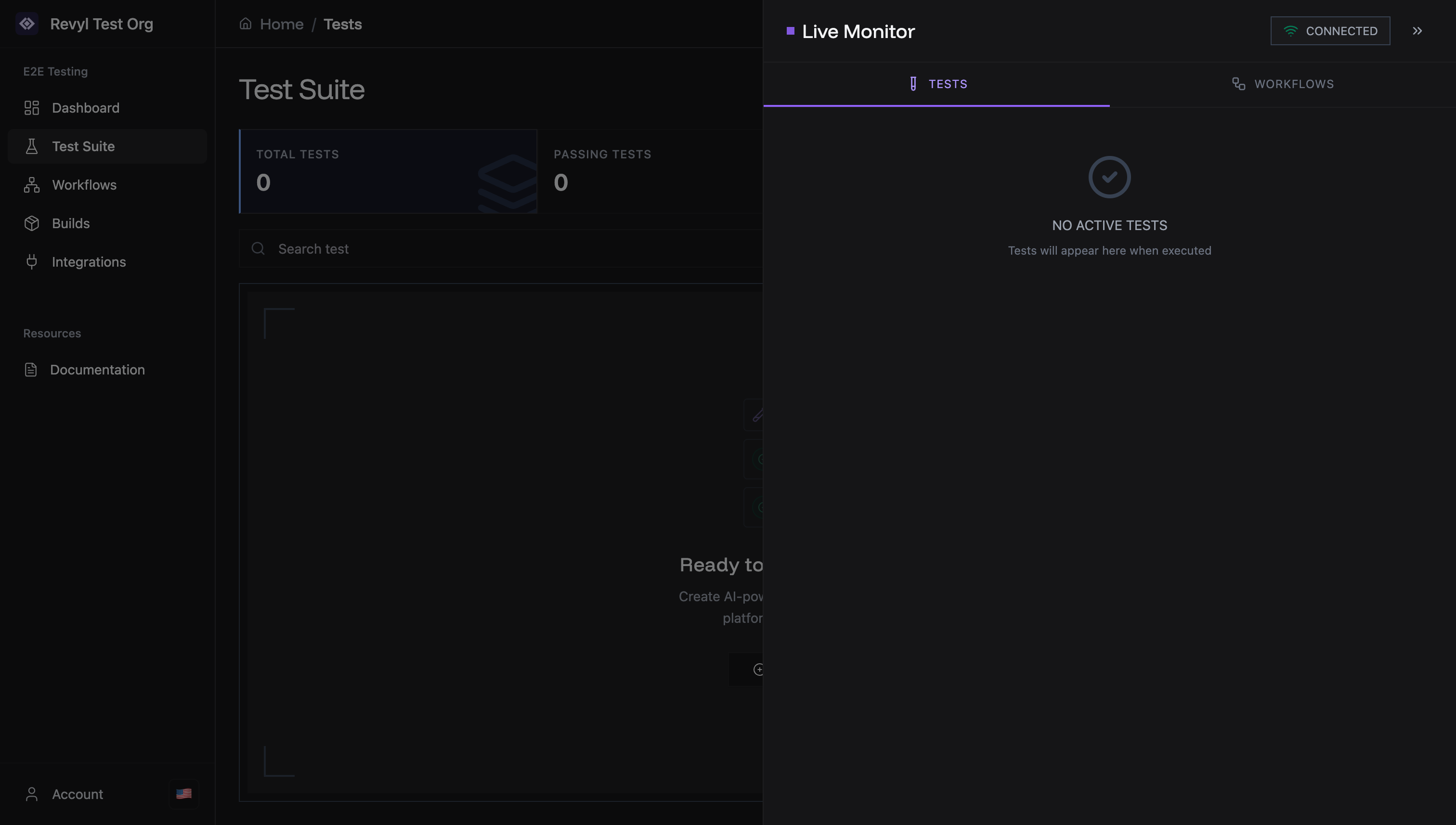
- “NO ACTIVE TESTS” message
- Empty state with checkmark icon
- “Tests will appear here when executed”
- Test name and platform badge (iOS/Android)
- Current step description (“Setting up…”, “Running Step 1…”)
- Progress percentage (e.g., “2%”, “10%”)
- Elapsed time counter
- View button: Opens test in editor
- Cancel test button: Stops execution
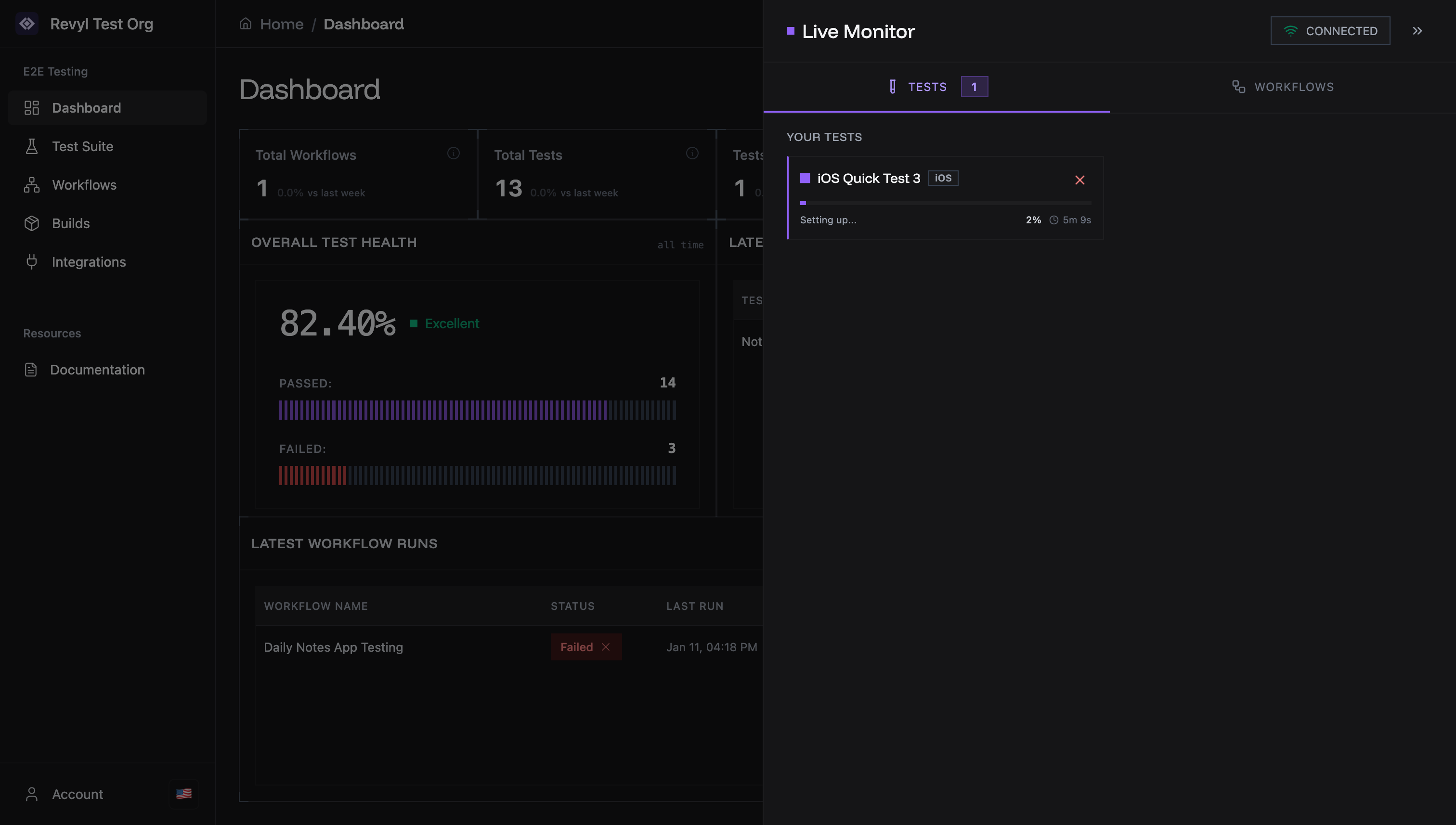
- Shows tests that finished in current session
- Pass/fail status indicator
- Completion timestamp
- Open button: View full report
- Dismiss button: Remove from list
Workflows Tab
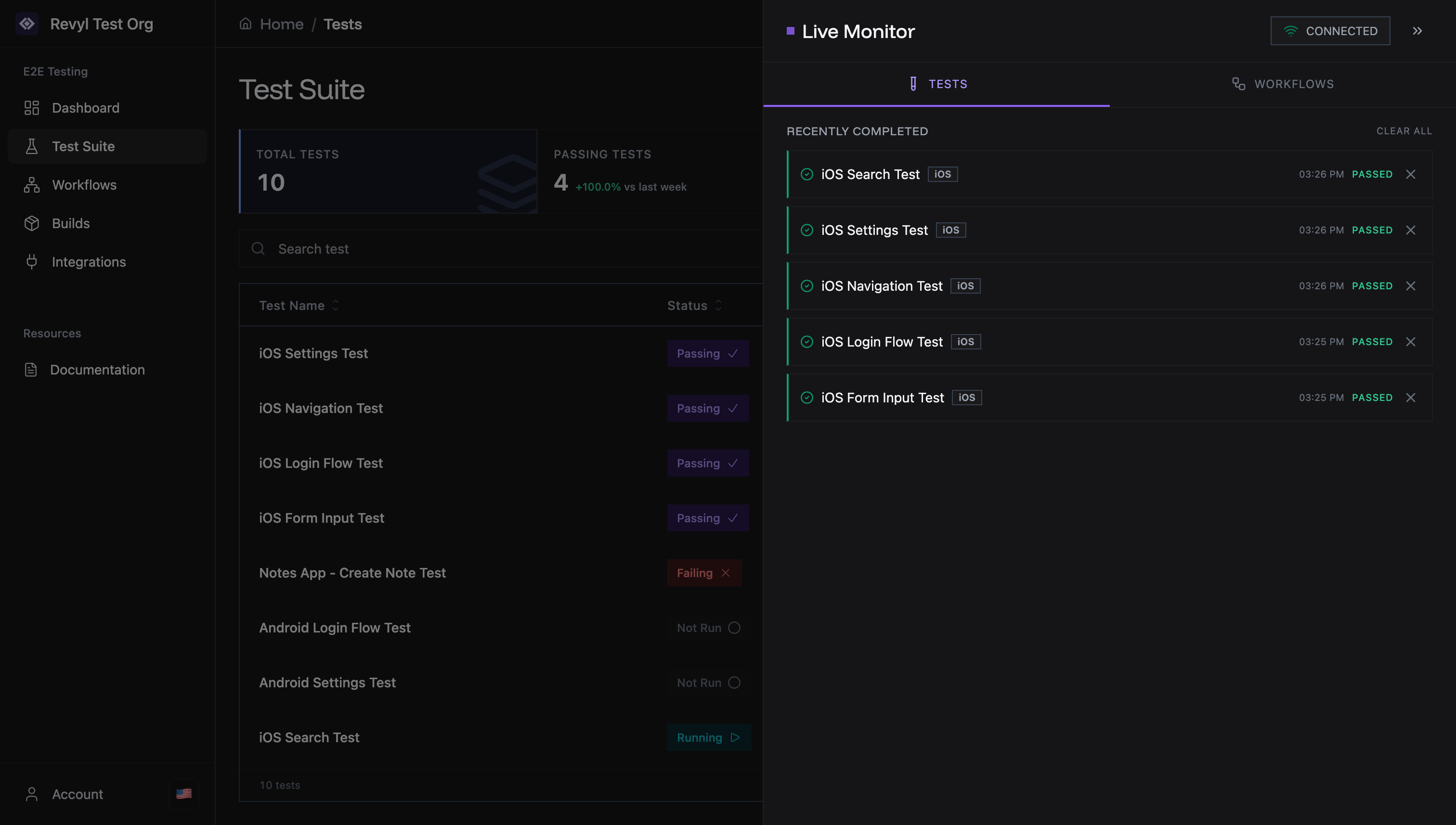
Shows workflow executions.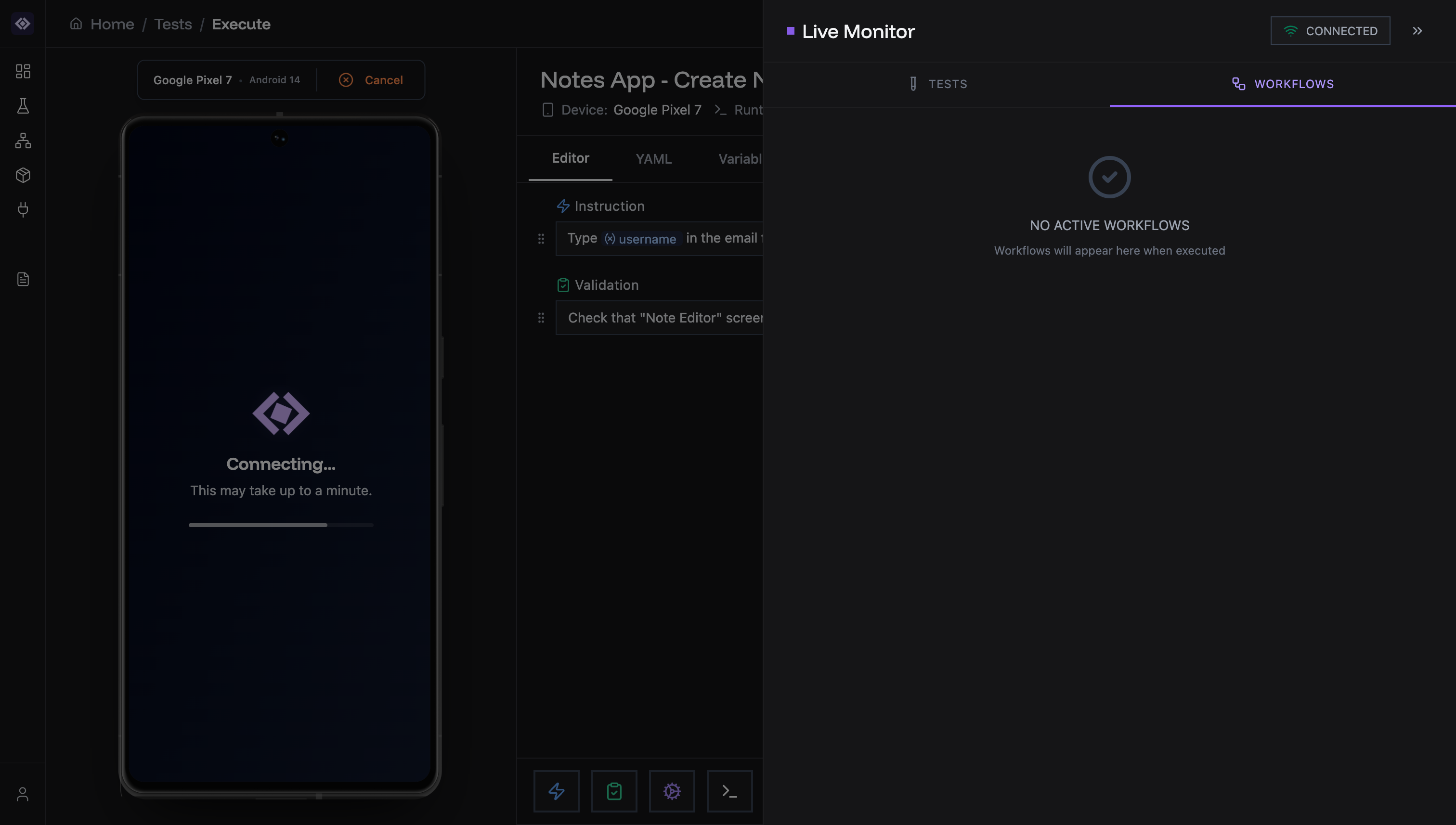
- “NO ACTIVE WORKFLOWS” message
- Empty state with checkmark icon
- “Workflows will appear here when executed”
- Workflow name
- Tests being executed
- Overall progress
- Real-time status
Connection Status
Top-right indicator shows connection state:- CONNECTED (green): Receiving live updates
- CONNECTING (yellow): Establishing connection
- DISCONNECTED (red): Connection lost
How It Works
Automatic Detection
The monitor detects:- Tests started from Test Editor
- Tests launched from Test Suite
- Workflows triggered manually
- Tests/workflows started via API
Live Updates
Updates in real-time:- Step progress
- Device screenshots
- Status changes (running to passed/failed)
- Execution logs