

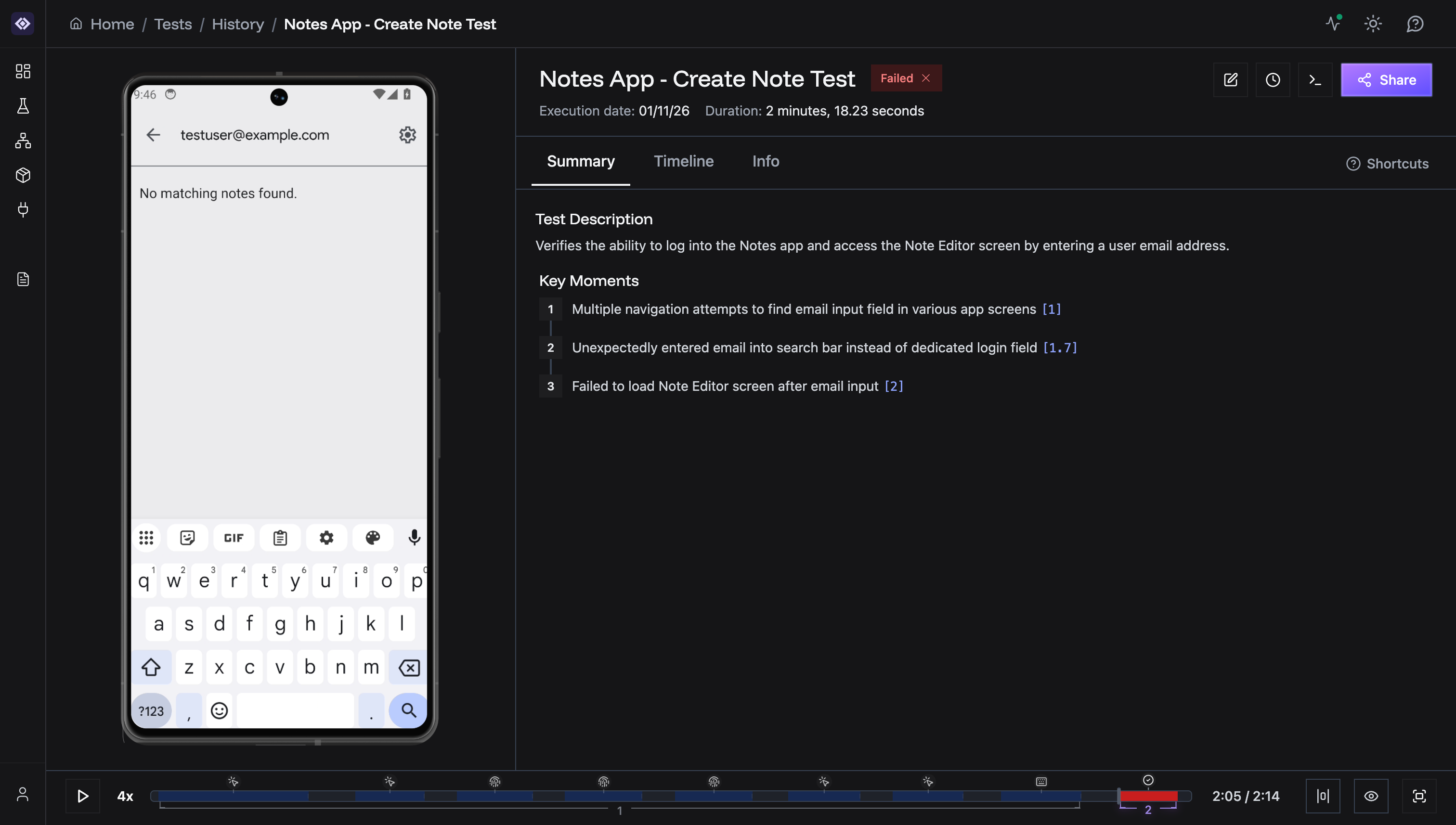
What’s in a Report
- Live Device Stream: Real-time video
- Step-by-Step Timeline: Each action with screenshots
- AI Reasoning: Why actions were taken
- Pass/Fail Status: Clear indicators
- Key Moments: Auto-generated highlights
Accessing Reports
From Test History
Test Suite → Click test → View Runs → Click any runFrom Running Tests
Click View report to watch live.Report Sections
Summary Tab
AI-generated test summary plus Key Moments (3 critical events). Click links to jump to steps.Timeline Tab
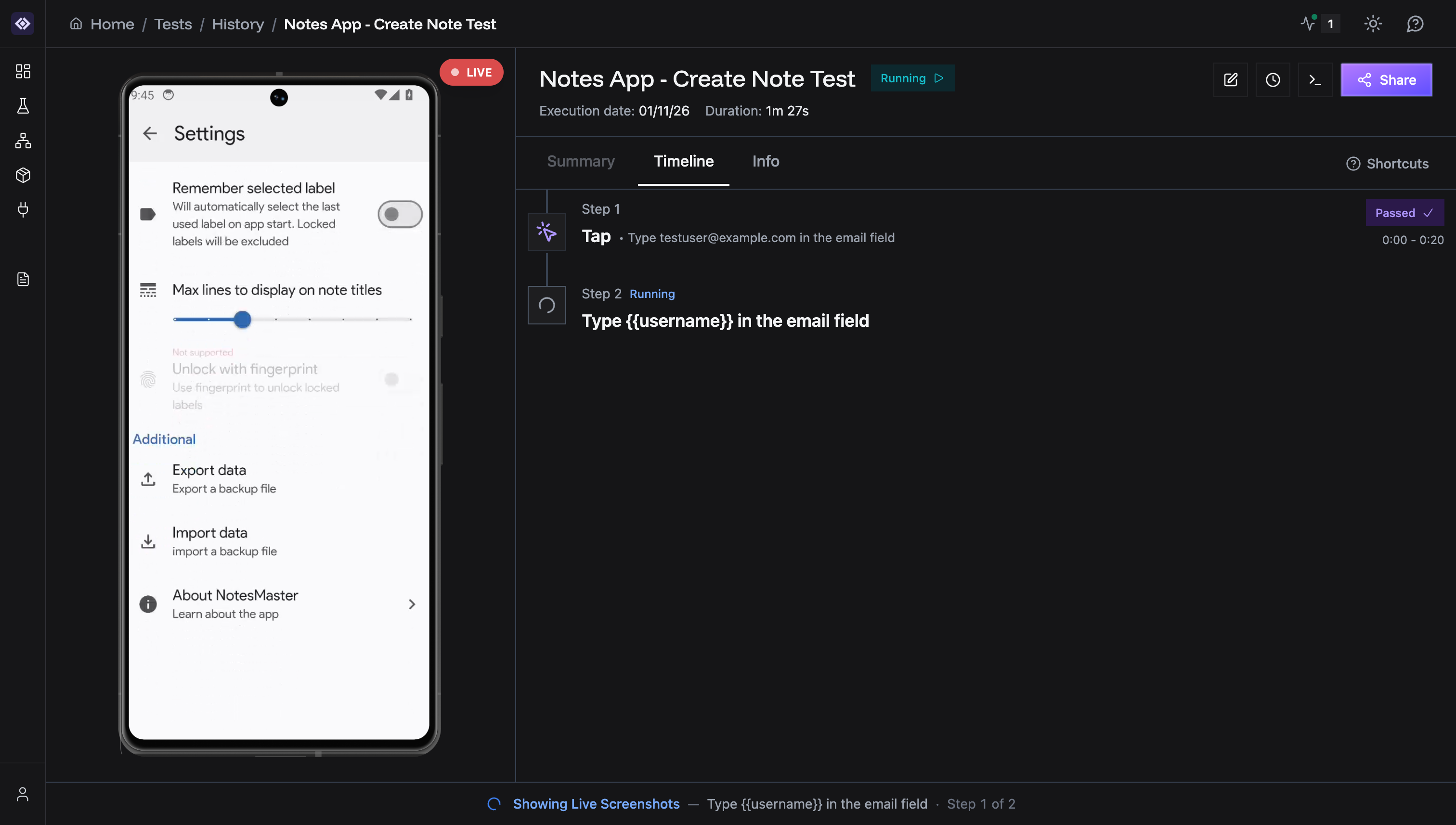
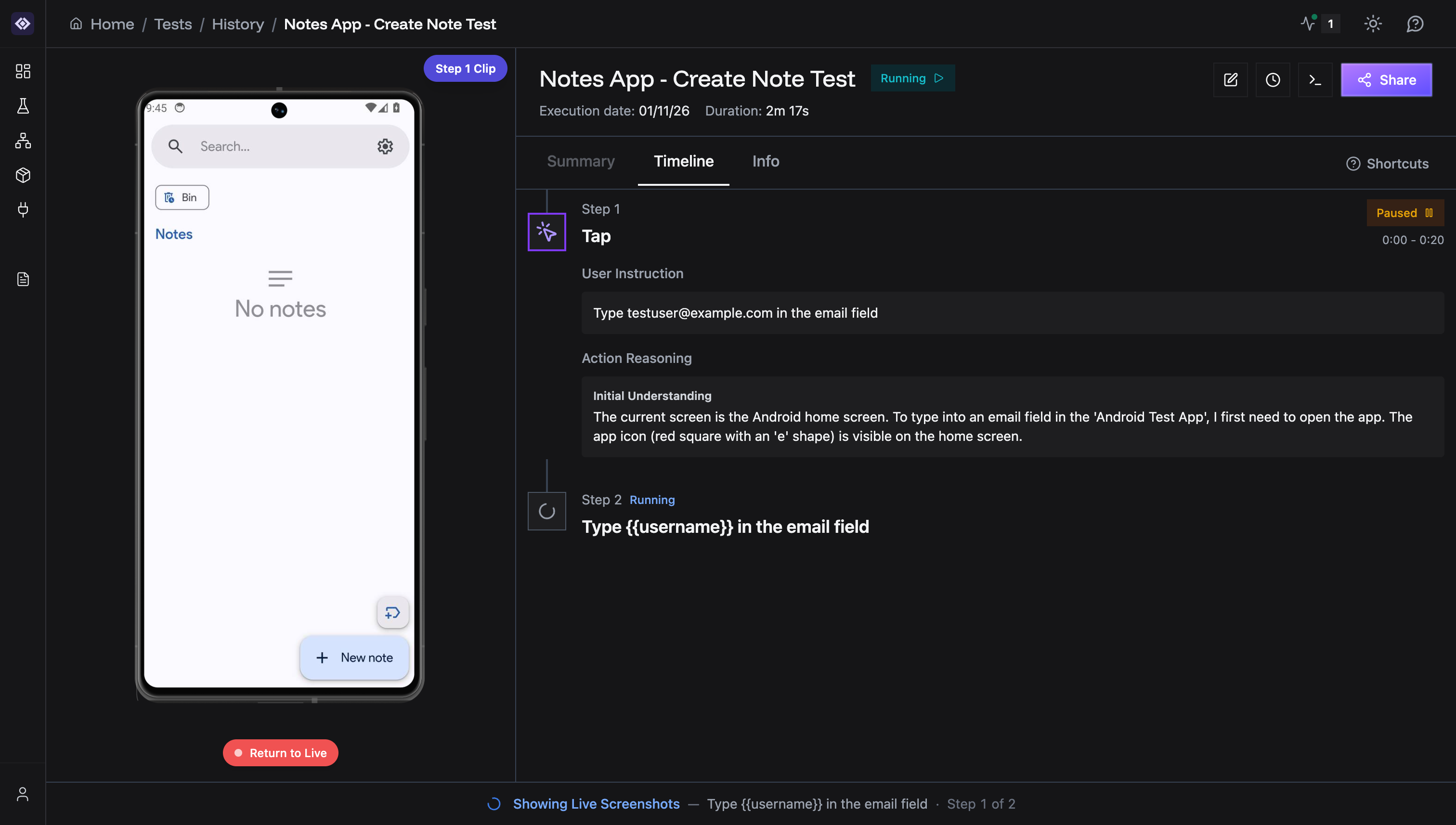
- Action type (Tap, Swipe, Input, Validation)
- Status badge (Passed/Failed/Running)
- Timing (e.g., “0:00 - 0:20”)
- User instruction
- AI reasoning
Info Tab
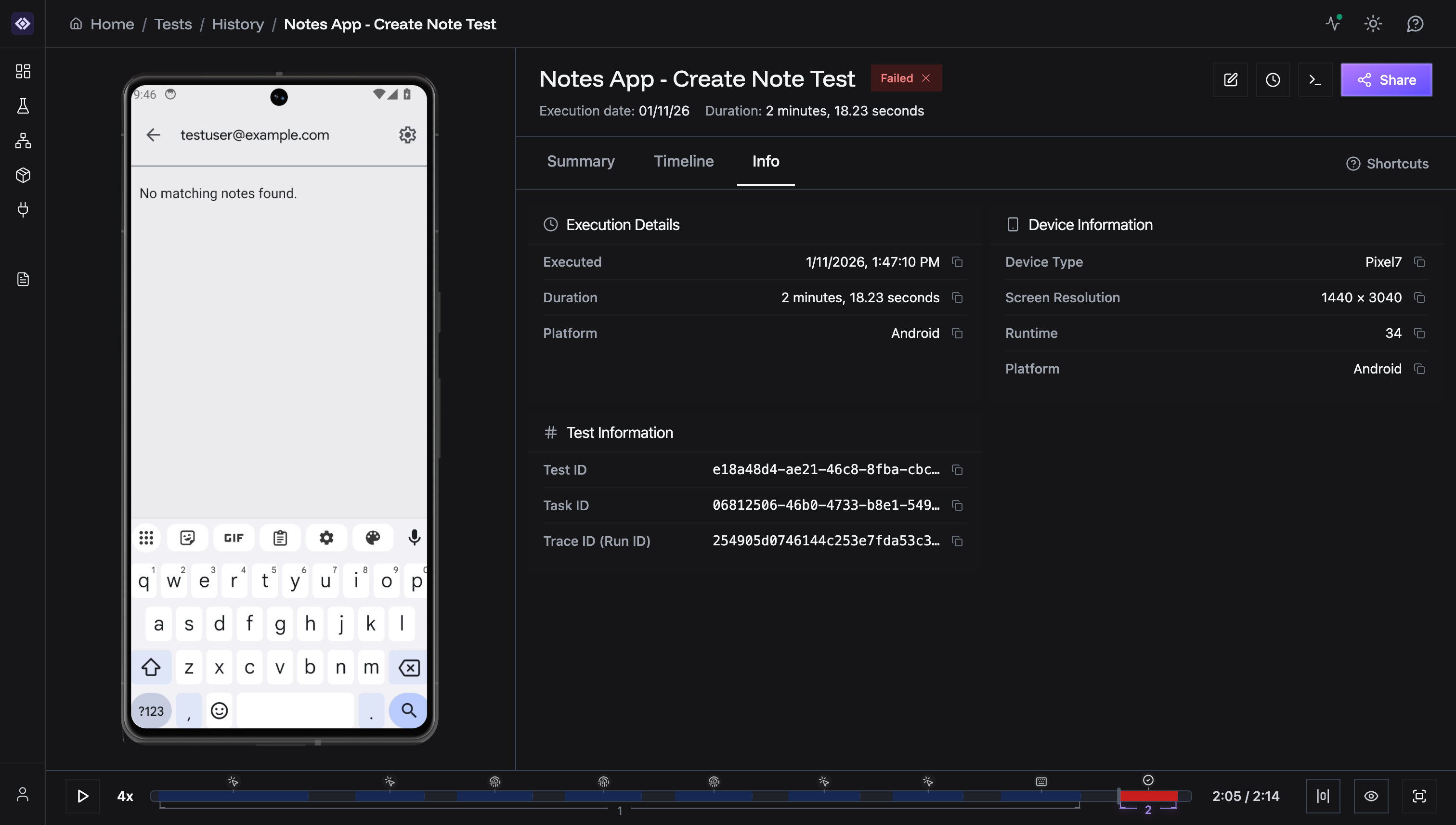
- Execution: Timestamp, duration, platform
- Device: Type, screen resolution, OS version
- Test Info: Test ID, Task ID, Trace ID
Live Streaming
Red “LIVE” badge shows active streaming. Auto-follows current step.Video Playback
After execution, replay with timeline controls:- Play/Pause
- Speed adjustment
- Step markers (tap, swipe, input, validation)
- Scrub to any moment
Sharing Reports
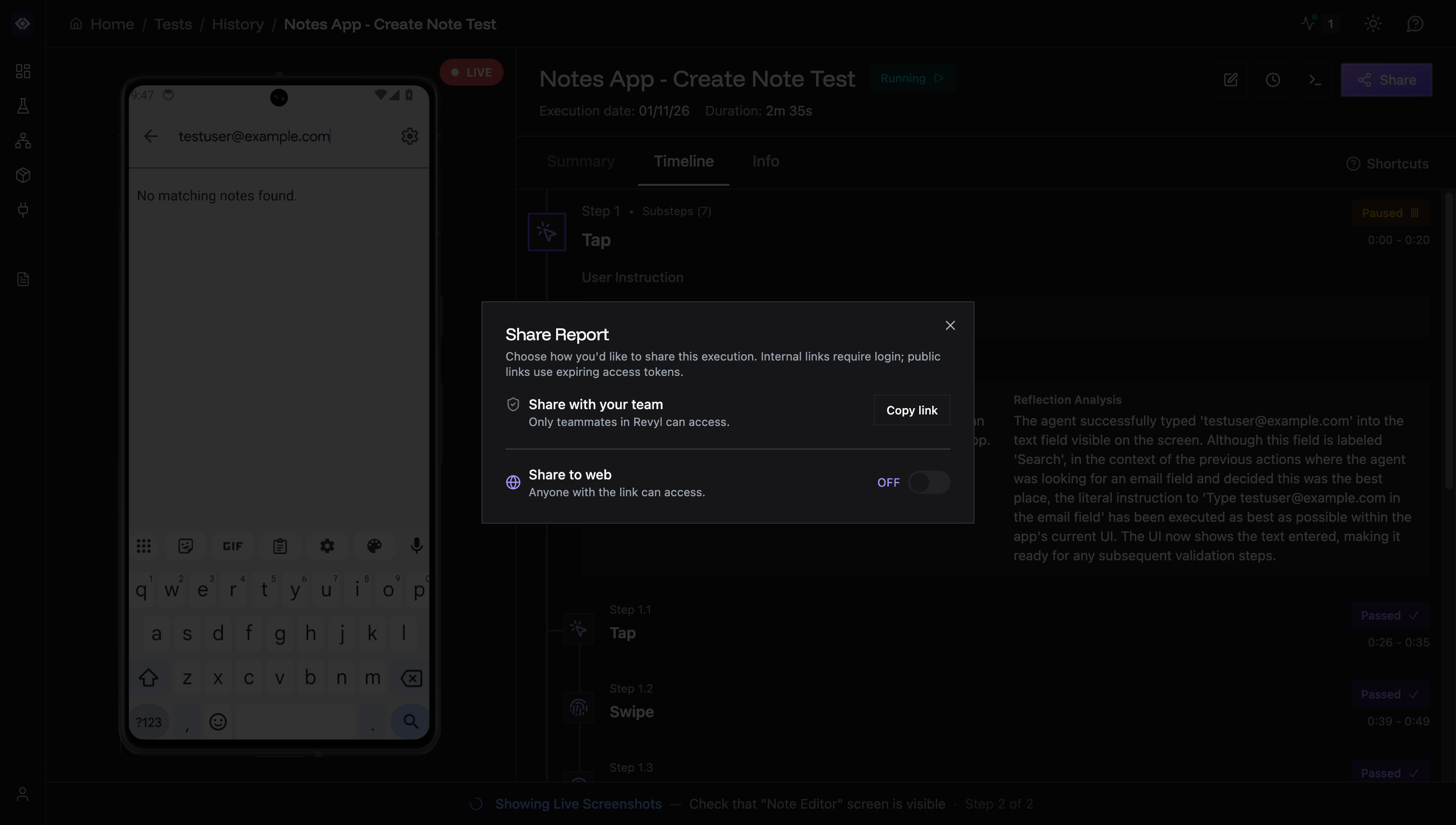
Understanding Results
Status Icons:- ✅ Green checkmark: Passed
- ❌ Red X: Failed
- ⏸️ Orange pause: Paused/reviewing
- 🔄 Blue spinner: Running
AI Reasoning
Each step explains:- Initial Understanding: What AI saw
- Reflection Analysis: Action success/failure