

Accessing Test History
To view a test’s history:- Go to Test Suite in the sidebar
- Click on any test in the list
- You’ll see the History view by default
History Page Layout
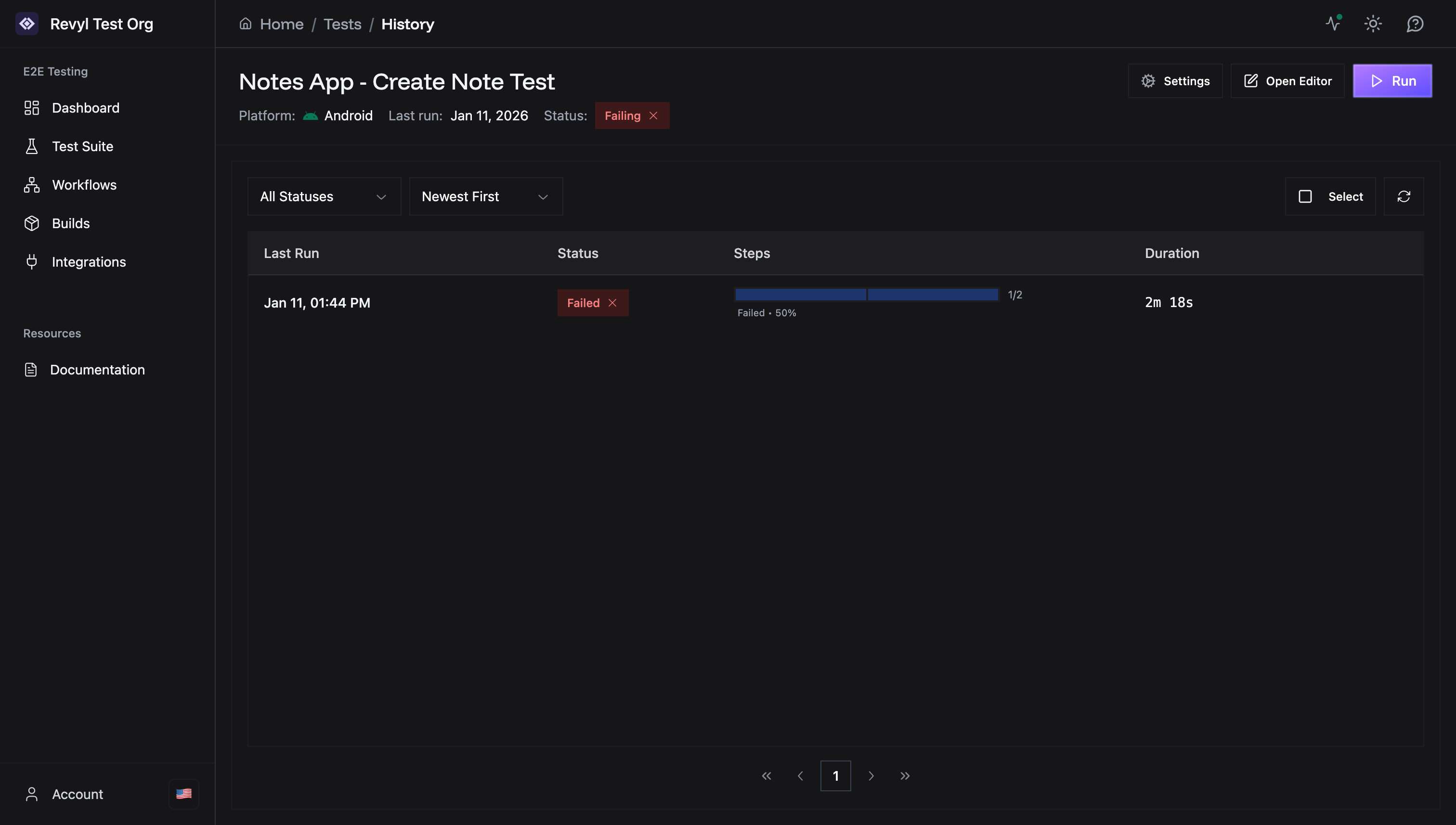
The History page shows: Test Header:- Test name
- Platform (Android or iOS)
- Last run timestamp
- Current status (Passed/Failed/Not Run)
- Settings - Configure test options
- Open Editor - Go to the Test Editor
- Run - Execute the test now
- All Statuses - Filter by Passed/Failed/Running
- Newest First - Sort by date (newest/oldest first)
- Refresh - Reload the history list
Test Run List
Each test run shows:- Timestamp - When the test was executed
- Status - Pass/Fail/Running indicator
- Duration - How long the test took
- Steps - Which steps passed / failed
Test Configuration
- Device used
- Build version
- Variables used
- Environment settings
Analyzing Failures
When a test fails, the History view helps you debug:- Check the status - See which step failed
- Review the report - Visual evidence of the failure
- Read logs - Look for error messages
- Compare with passing runs - What changed?
- Open Editor - Fix the issue and re-run
Sharing Results
You can share test results with your team:- Click on a test run
- Copy the report link
- Share the link - anyone with access can view
- Results include logs and full details
Empty State
If a test hasn’t been executed yet, you’ll see:“No test runs found” “This test hasn’t been executed yet.”Click Run to execute the test for the first time.
Filtering & Sorting
By Status:- All Statuses
- Passed only
- Failed only
- Running (in progress)
- Newest First (default)
- Oldest First
Best Practices
- Review failures immediately - Don’t let failed tests pile up
- Check logs for patterns - Recurring errors indicate systemic issues
- Keep a history - Don’t delete old runs, they’re useful for trends
- Share with team - Use URLs to discuss failures together
Next Steps
Need help? Contact [email protected]