

Accessing Workflow Reports
- Go to Workflows in the sidebar
- Click on a workflow card to open its details
- The History tab shows all execution runs
- Click any row in the history table to open the report
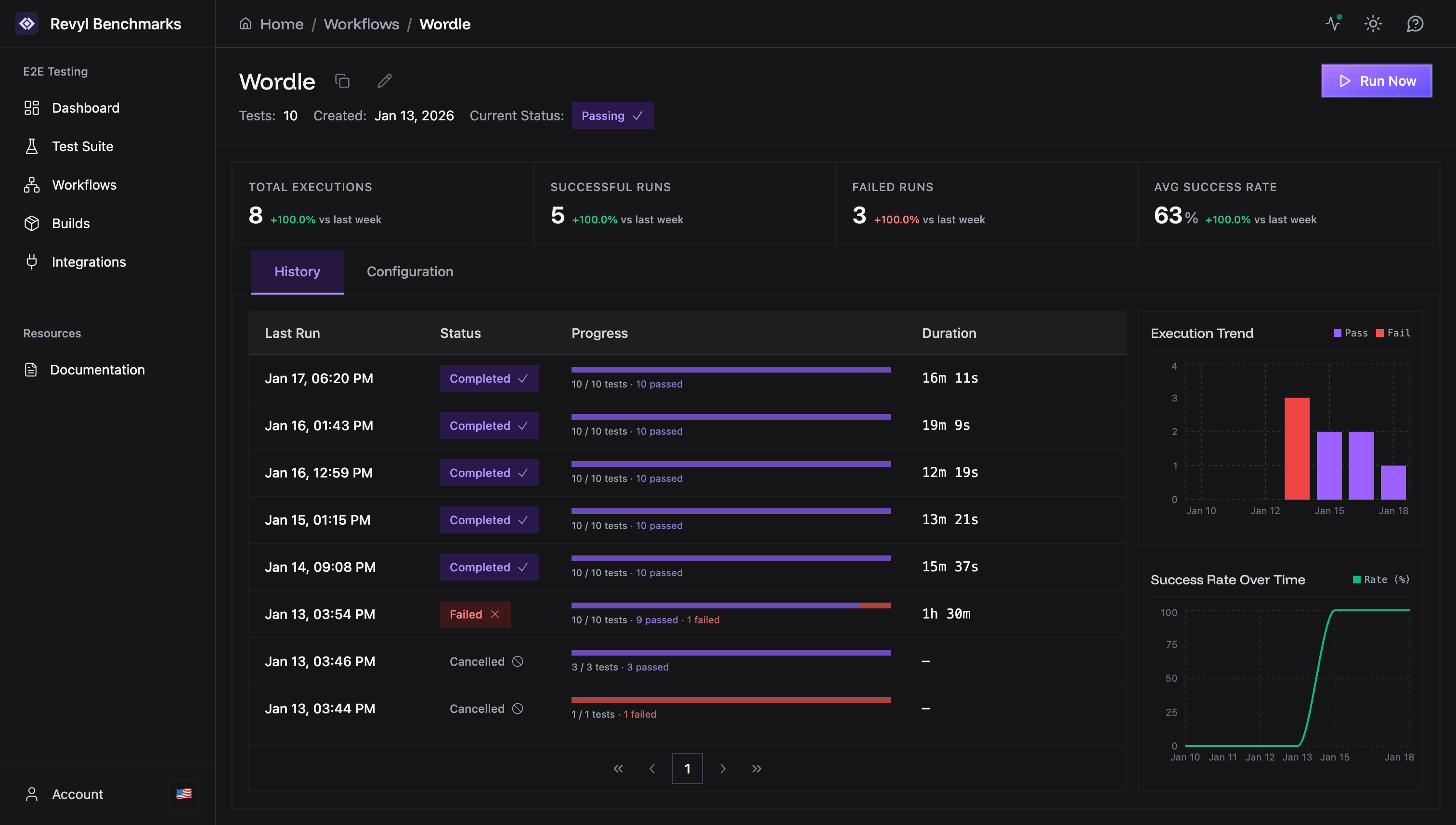
Workflow Report Page
The workflow report shows all tests running simultaneously with live video streams.Large Mode (3 tests per page)
Shows fewer tests with bigger device frames for detailed viewing.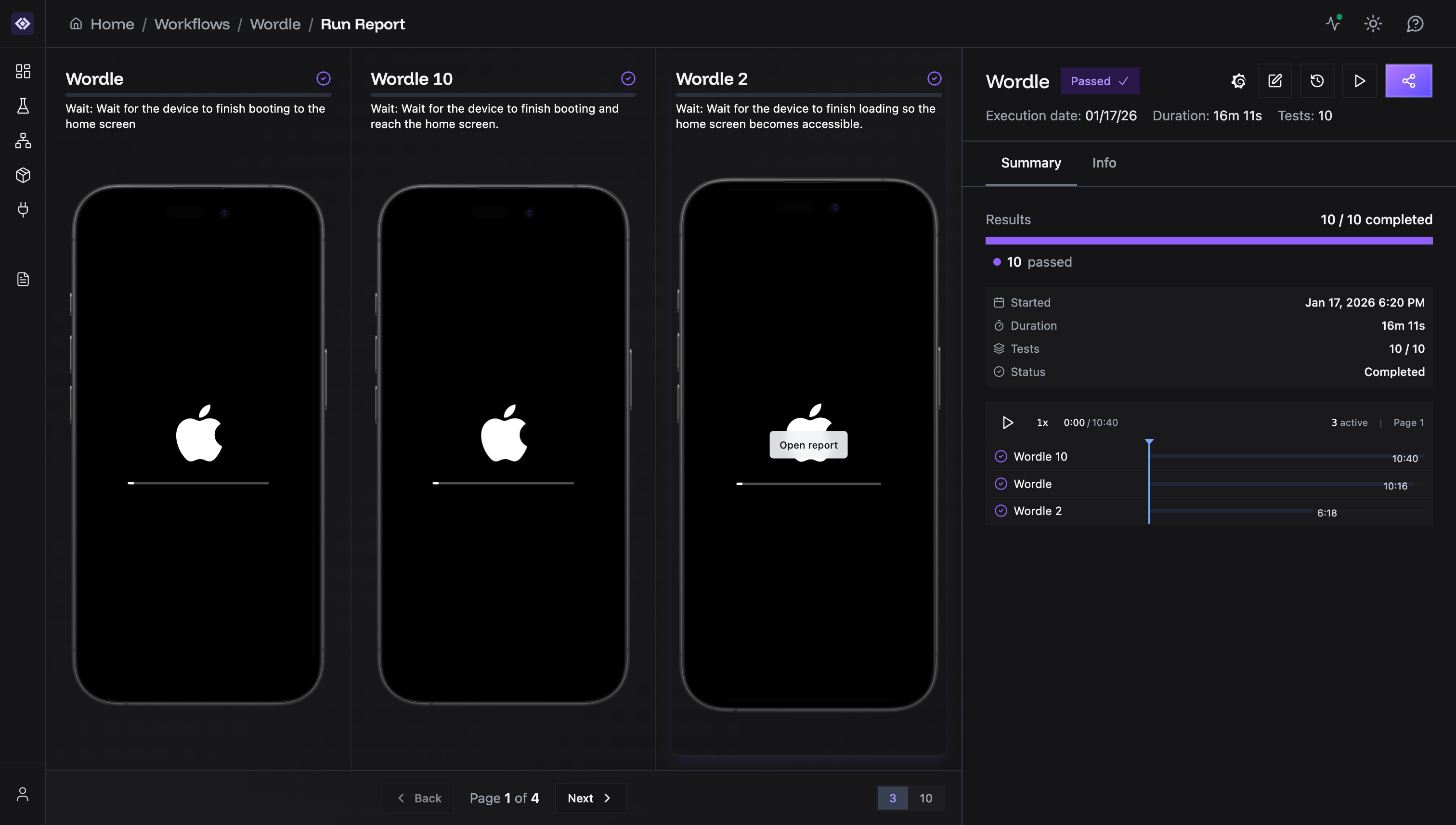
Compact Mode (10 tests per page)
Shows more tests in a grid layout for overview.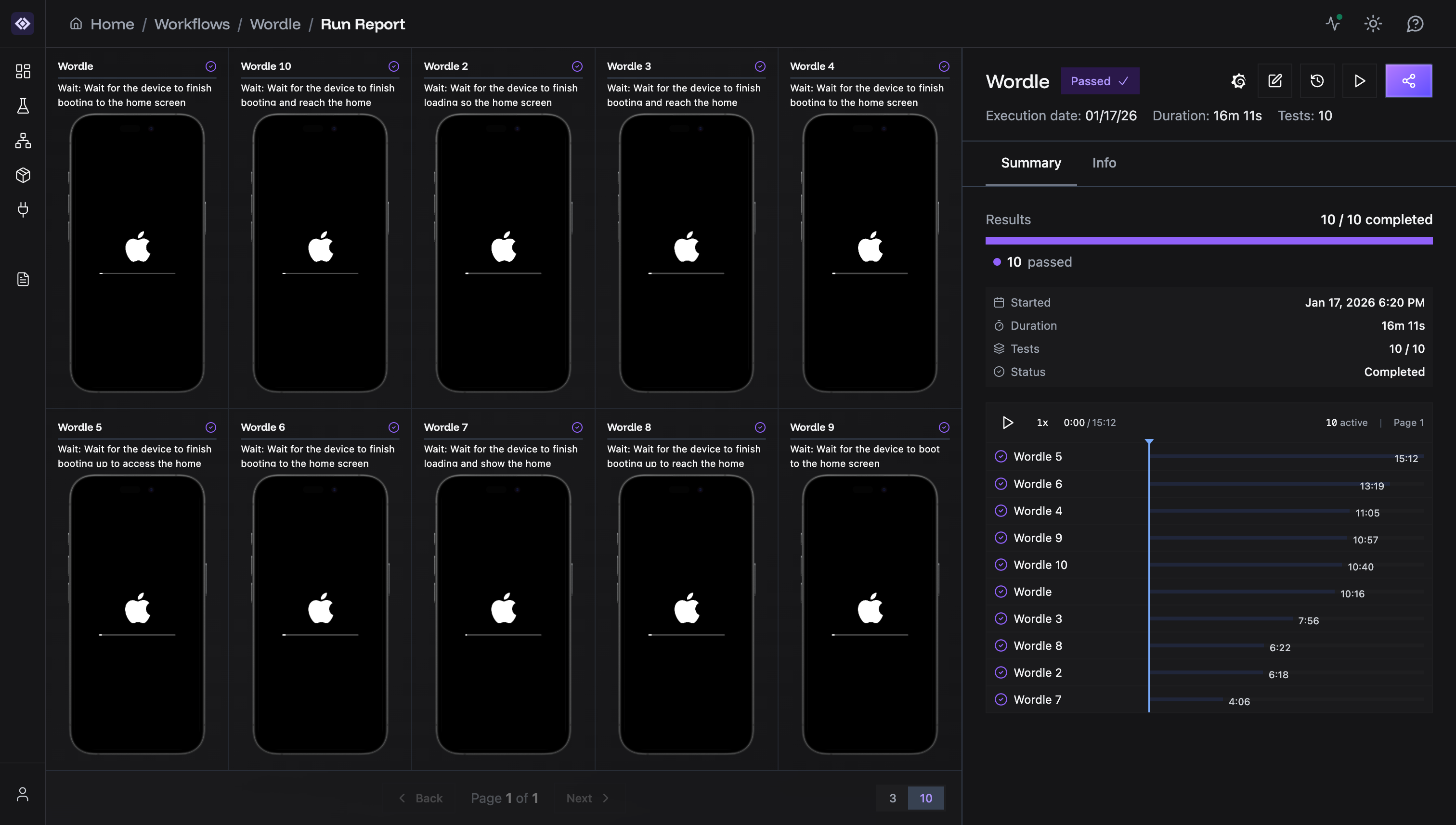
Layout
- Left panel: Test cards with device streams (one per test)
- Right panel: Summary with status, duration, and timeline
Test Cards
Each test card displays:- Test name and current step description
- Status badge (Passed/Failed/Running)
- Device frame with video stream or final screenshot
- “Open report” link to view individual test details
Summary Panel
- Workflow name and overall status (Passed/Failed)
- Execution date, Duration, Test count
- Results progress bar showing pass/fail breakdown
- Timeline showing each test’s duration with time bars
Display Modes
Use the buttons at the bottom right to control display:| Button | Mode | Description |
|---|---|---|
| 3 | Large | 3 tests per page, bigger frames |
| 10 | Compact | 10 tests in 5x2 grid |
Pagination
When workflows have many tests:- Back/Next buttons to navigate between pages
- Page indicator shows position (e.g., “Page 1 of 4”)
Live Streaming
While tests are running:- Device frames show real-time video of test execution
- Status shows as “Running” with progress indicator
- Timeline updates as each step completes
Actions
From the report page:- Share the report (share icon, top right)
- Open in new tab (external link icon)
- Re-run the workflow (play icon)
- Playback controls - 1x speed button and timeline scrubber
Next Steps
Individual Test Reports
View detailed step-by-step test results
Configuring Workflows
Manage tests and settings in your workflow