

Overview
The YAML tab in the Test Editor provides a way to view, edit, and export your test as a structured YAML file. This is useful for:- Version control - Store tests in Git alongside your code
- CI/CD integration - Run tests in GitHub Actions or other CI pipelines
- Bulk editing - Modify multiple steps at once using text editing
- Sharing tests - Send test definitions to teammates
- Documentation - Keep test specifications in your docs
Accessing the YAML View
In the Test Editor, click the YAML tab at the top of the editor panel (between Editor and Variables tabs).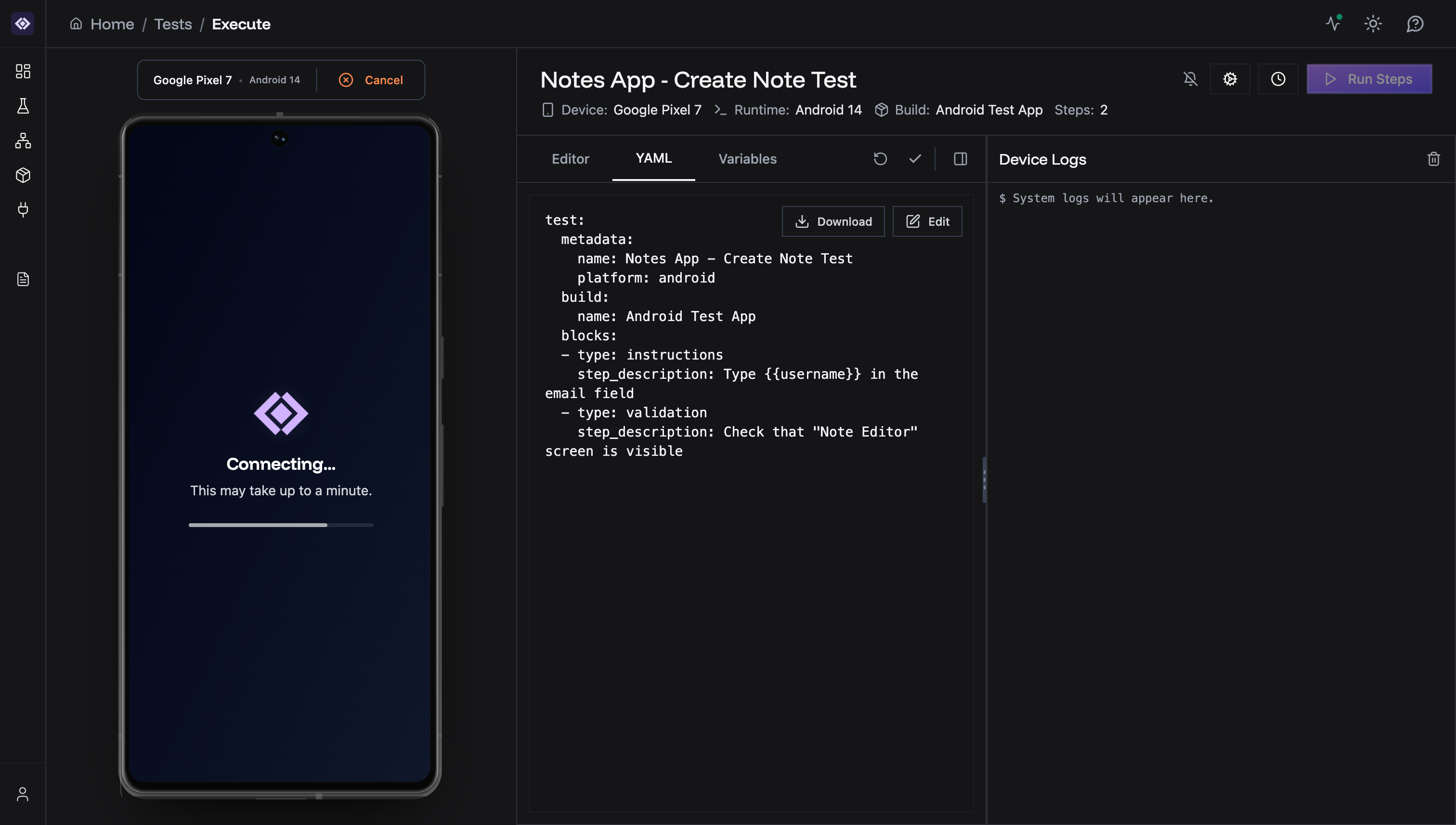
- Test metadata - Name, platform, build
- Blocks array - All test steps in order
- Variables - Preserved using
{{variableName}}syntax
YAML Structure
Key Components
metadata section:name- Test name (required)platform-androidorios(required)
name- Build name to test against (required)pinned_version- Specific version (optional)
- Each block represents a test step
type- Step type (instructions,validation,extraction,manual,if,while)step_description- Natural language instruction
YAML Limitations
Downloading YAML Files
Click the Download button in the YAML view to export your test as a.yaml file.
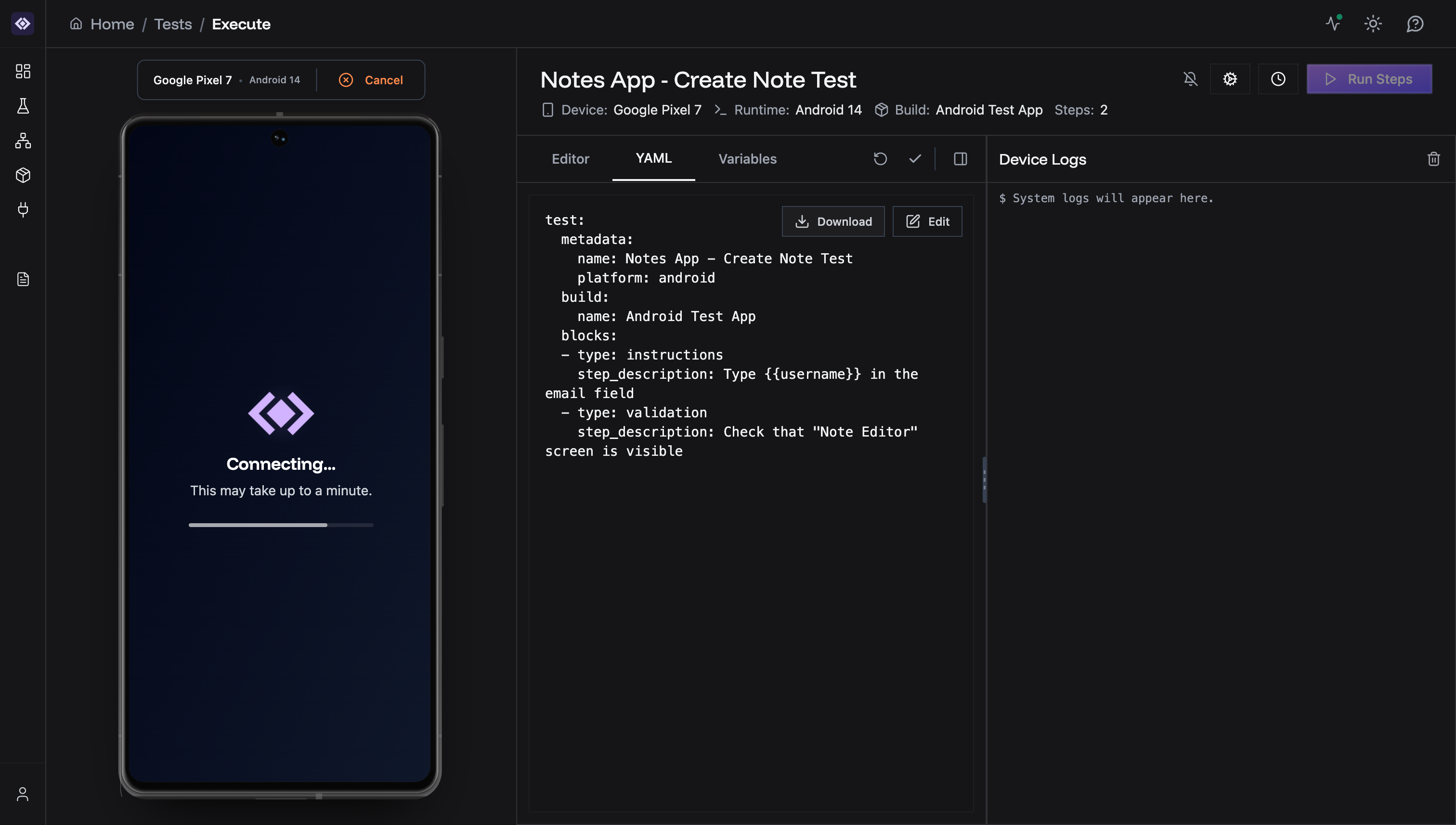
test_{testId}_{test-name}.yaml
Example: test_e18a48d4-ae21-46c8-8fba-cbc47102c9c3_notes_app_-_create_note_test.yaml
You’ll see a success notification when the download completes.
Editing YAML Directly
Click the Edit button to modify the YAML directly in the browser.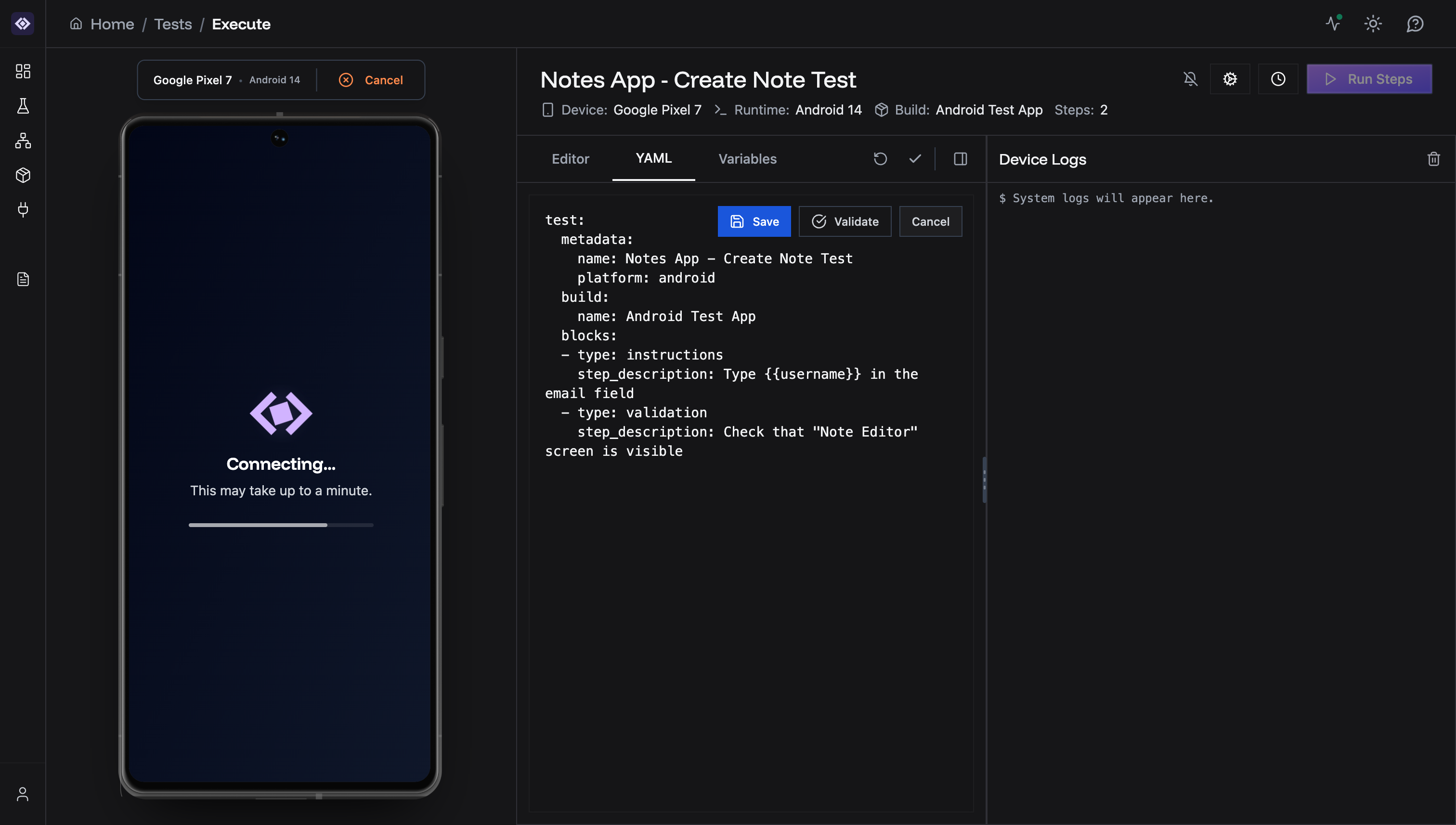
- Save - Apply changes and convert back to visual editor
- Validate - Check YAML syntax without saving
- Cancel - Discard changes and return to view mode
When to Edit YAML
Editing YAML directly is faster when you need to:- Rename steps in bulk - Change similar text across multiple steps
- Add multiple steps - Copy and paste similar blocks
- Update variables - Replace variable names throughout the test
- Restructure tests - Reorder or reorganize large sections
Variables in YAML
Variables use Mustache template syntax:{{variableName}}
- Case-sensitive
- Automatically highlighted in the visual editor when recognized
- Preserved when switching between Editor and YAML views
Control Flow in YAML
If/Else Conditionals
While Loops
Max iterations: While loops require a
max_iterations value to prevent
infinite loops. Default is 5.Common Issues
Empty blocks Array
Issue: YAML showsblocks: [] even though steps exist in the editor
Cause: Some steps are missing required fields (empty descriptions)
Solution:
- Switch back to Editor tab
- Fill in or delete incomplete steps
- Return to YAML tab to see complete structure
Variables Not Recognized
Issue: Variables show as plain text instead of{{variable}} syntax
Cause: Variable not defined in Variables tab
Solution:
- Switch to Variables tab
- Create the variable
- Return to YAML view - variables will now appear with
{{}}syntax
YAML Won’t Save
Issue: Save button doesn’t work after editing Cause: Invalid YAML syntax (incorrect indentation, missing colons, etc.) Solution:- Click Validate button to see syntax errors
- Fix indentation (use spaces, not tabs)
- Ensure all keys have colons:
type: instructions - Check that lists use proper dash syntax:
- type: instructions
Related Pages
- Test Steps - Learn about all step types
- Variables - Variable creation and usage
- Test Editor - Visual test creation
- CI/CD Integration - Automate test execution
YAML Reference Documentation
For comprehensive YAML documentation, see:- YAML Schema Reference - Complete schema documentation
- YAML Examples - Real-world test examples
- Control Flow Guide - Detailed if/while usage
- LLM Schema Reference - Schema for AI-assisted test generation
Pro Tip: Use YAML export to create test templates. Download a test, modify the YAML, and use it as a starting point for similar tests in your CI/CD pipeline.