

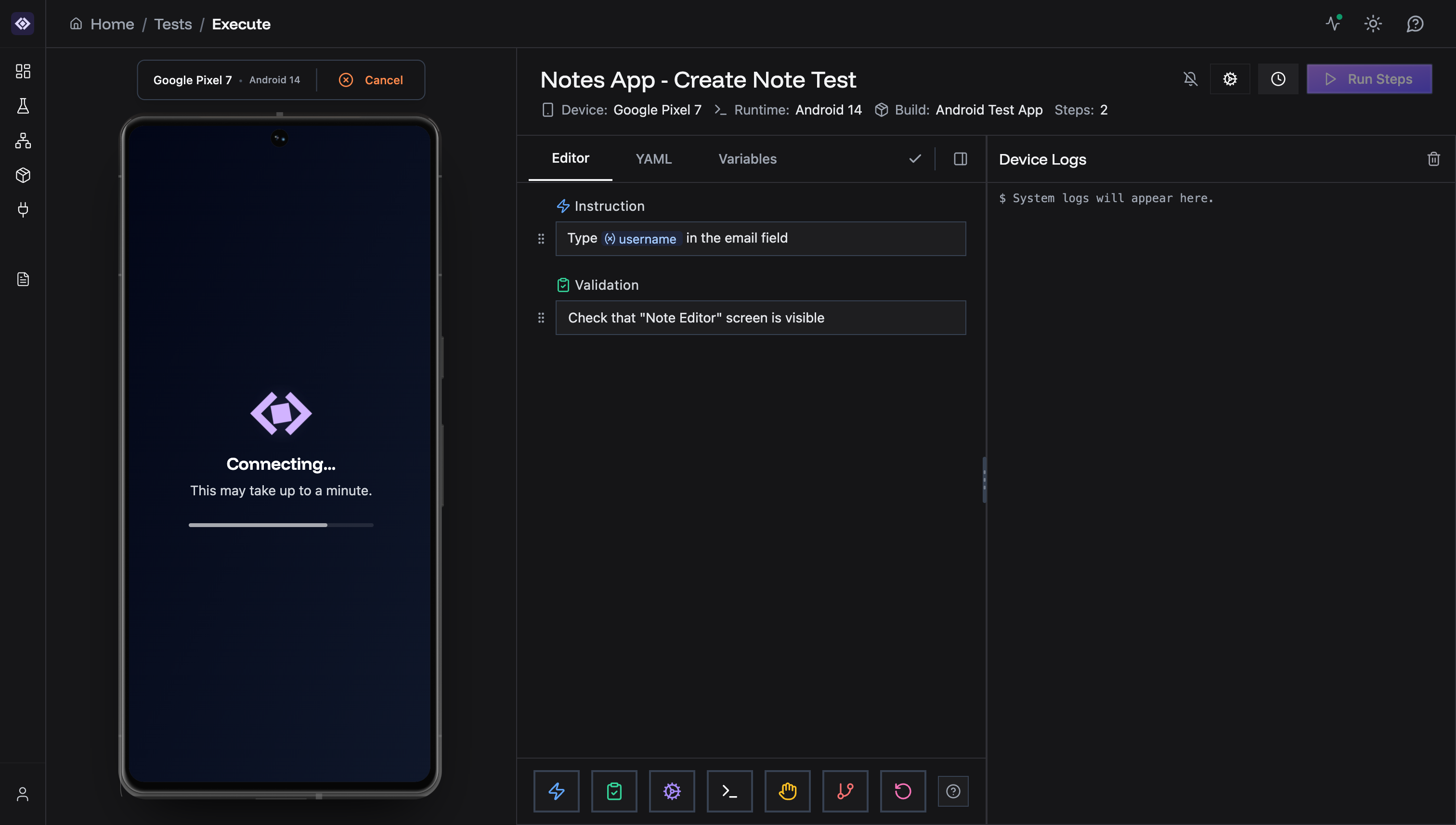
Device Info Bar
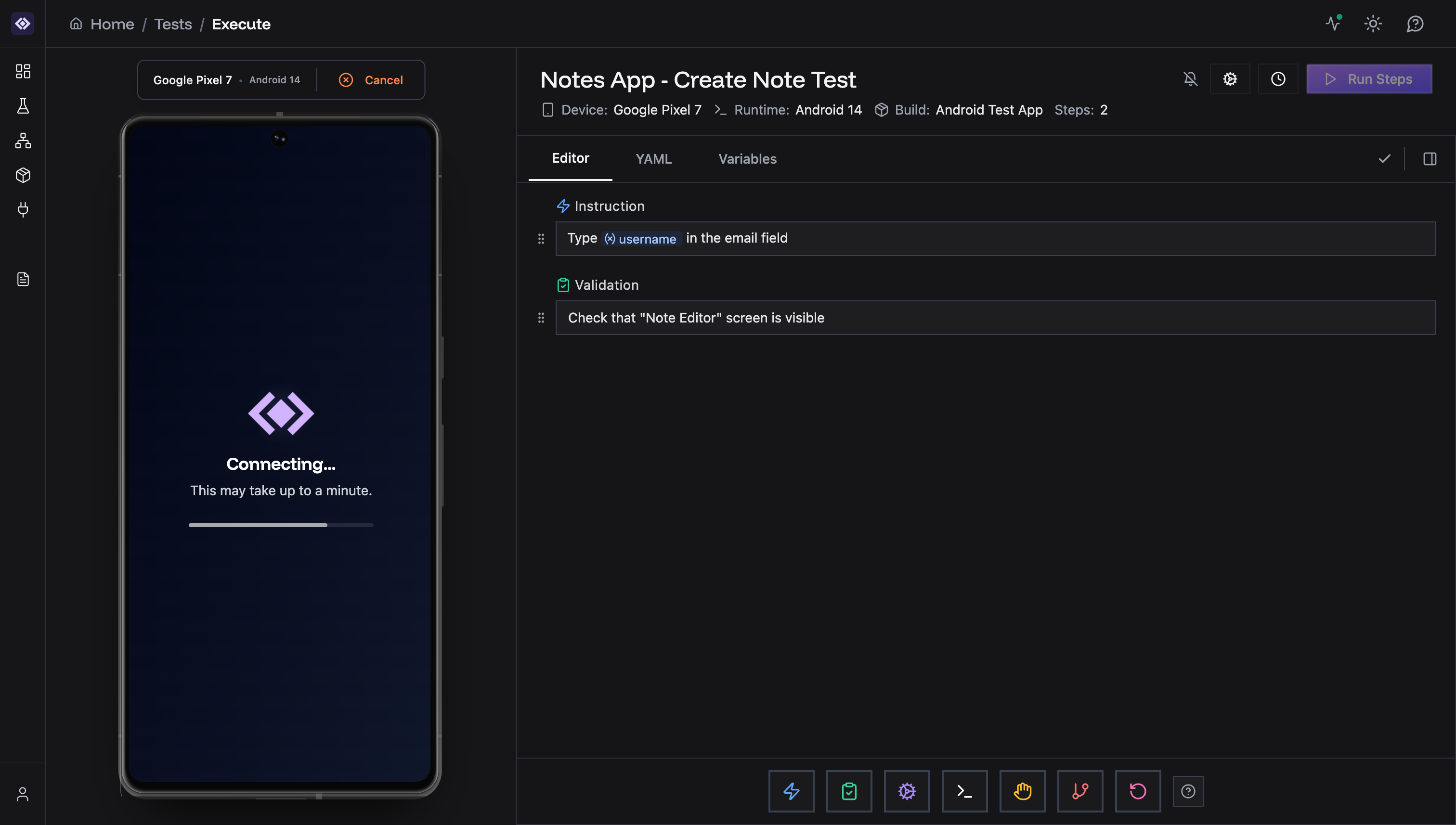
- Device Name: “Google Pixel 7”, “iPhone 14 Pro”
- Runtime: “Android 14”, “iOS 17”
- Build: App build (click to view)
- Steps: Total step count
- Cancel: Stop device immediately
Live Device Interaction
The device stream is fully interactive. You can control the device in real-time just like a physical phone: Basic Interactions:- Tap - Click anywhere on the screen
- Swipe - Click and drag in any direction
- Scroll - Swipe up/down to scroll through content
- Long press - Click and hold for long press actions
- Long Press - Hold down on an element
- Double Tap - Tap twice quickly
- Pinch - Zoom in or zoom out on maps, images, and other zoomable content
- Input - Enter text directly into the focused field
- Exploratory testing - Manually navigate your app to discover issues
- Test debugging - Step through a failing test manually to understand the problem
- Recording tests - Enable recording mode to capture your interactions as test steps
- Verification - Quickly check app behavior without running a full test
Device Logs
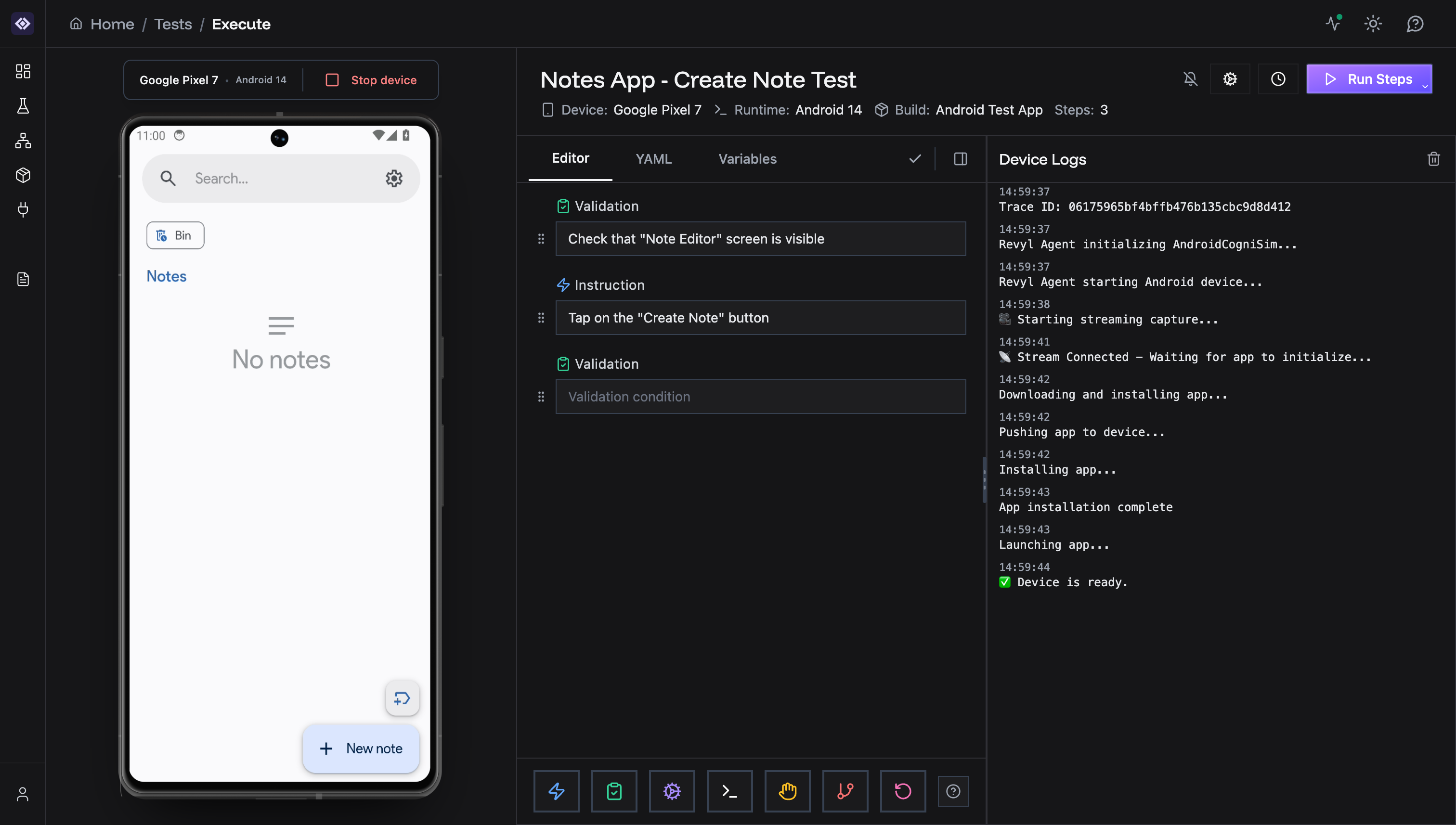
- Connection status
- Step execution
- Errors and warnings
Platform Info
Android
- Startup: 5-45 seconds (varies by app size)
- Requires: APK file uploaded (or zipped APK)
iOS
- Startup: 5-30 seconds (varies by app size)
- Requires: Zipped
.appbundle for simulator
Troubleshooting
Device Won’t Start
- Check build selection
- Wait 60 seconds
- Check concurrency limits
- Click Cancel → Retry
Build Won’t Start (Non-Debug Build)
Connection Lost
- Check network
- Refresh page
- Keep tab visible (10min timeout)
Video Not Loading
- Wait for RUNNING state
- Disable ad blockers
- Use Chrome/Edge
Concurrency Limit
- Check Live Monitor for active sessions
- Close unused devices
- Wait for others to finish
App Won’t Launch
- Verify build exists in Builds page
- Check build compatibility (OS version)
- Try different build version
- Ensure it’s a debug/simulator build (see above)
Session Limits
Concurrency: 1-3 devices (plan dependent) Session time: 30 minutes max Inactivity: 10 minutes if tab hiddenBest Practices
- Close unused sessions
- Keep tab active during testing
- Use Live Monitor to track all devices
- Use stable network (wired/strong Wi-Fi)